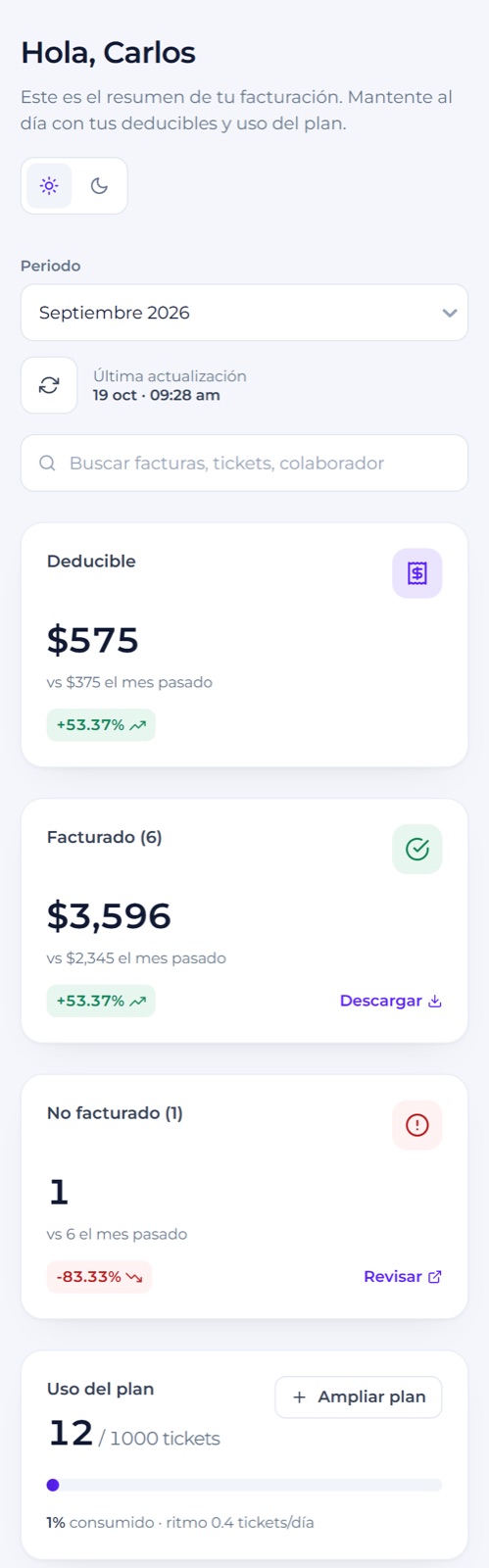
User guide for the business web app, screen by screen.
For: administrators and collaborators at companies that invoice their tickets with Fotofacturas. Terms (root association, company, collaborator, RFC, ticket, plan and status) are defined in Concepts. The web app is in Spanish, so screen and button names are shown as they appear on screen.
The screenshots in this guide use a demo account. Personal data (RFCs, emails, phone numbers and names) is blurred. The red numbers on each image are explained in the list that goes with it.
1. What the business web app is
The business web app is the web application where your company uploads photos of purchase tickets and receives the invoices (PDF and XML) generated in the name of the collaborator and the RFC you choose. From the same platform you can see how much has been invoiced, which tickets need attention and how much of your plan you’ve used.
| I want to… | Go to… |
|---|---|
| Upload a ticket and generate its invoice | Uploading tickets |
| See how much I’ve invoiced this month | Home |
| Download the PDF and XML | Invoice detail or the month’s ZIP |
| Find out why a ticket was rejected | Reports › Attention |
| Check how many tickets I have left | Plans |
| Add a collaborator and their RFC | Companies and collaborators |
| Connect my systems | API and plan |
| Get notifications about my tickets in my systems | Webhooks |
| Talk to a person | Help center |
2. Signing in and out
Requirements: an up-to-date browser (Chrome, Edge, Firefox or Safari) and your access credentials.
- Open your platform’s address. If you’re not signed in, you’ll see the sign-in screen.
- Enter your username and password.
- Click Iniciar sesión.
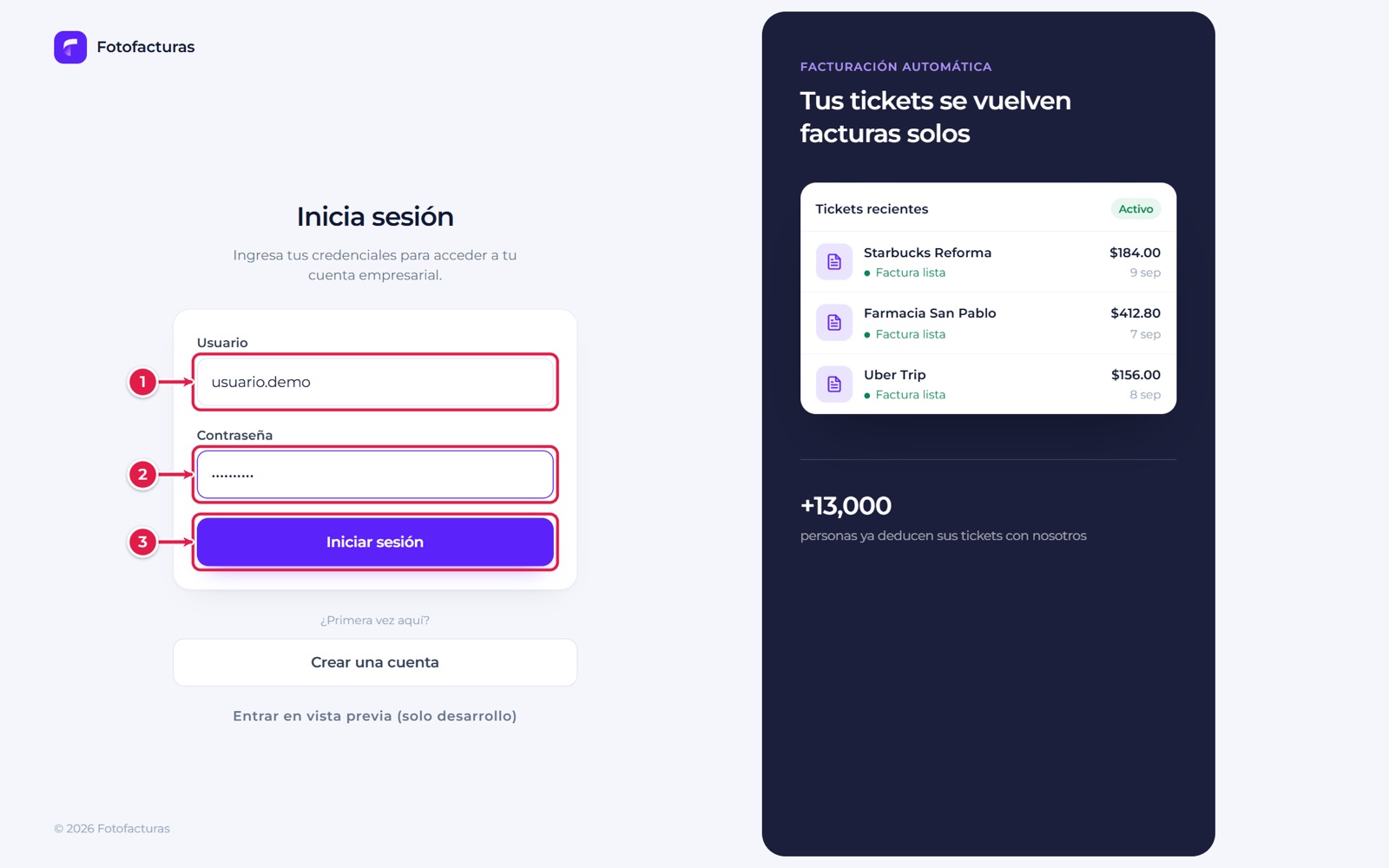
- Usuario: the username your administrator assigned you.
- Contraseña (password).
- Iniciar sesión: enabled once both fields have data.
If the username or password is wrong, the screen shows an error message. If your session expires, the platform takes you back to this screen and, when you sign in again, returns you to the page you were on.
Signing out: click the exit icon next to your name at the bottom of the side menu (on a phone, Salir in the bottom bar).
3. Tour of the platform
The left side menu is always visible and groups all the sections:
| Group | Section | What it’s for |
|---|---|---|
| Operación | Inicio | Monthly dashboard: indicators, charts and the invoice list |
| Preguntar | Assistant that answers with your account’s data | |
| Reportes | Analysis by collaborator, company and merchant | |
| Subida de tickets | Upload ticket photos and generate invoices | |
| Billing | Método de pago | Methods your charges have been paid with |
| Historial de pago | Recorded charges and how they break down | |
| Planes | Contracted plan, usage and capacity | |
| Account | Mi perfil | Your account data |
| Empresas y colaboradores | Companies, collaborators and tax certificates | |
| API y plan | Integration token | |
| Webhooks | Notifications to your systems and delivery history | |
| Centro de ayuda | Frequently asked questions and contact |
4. Home: monthly dashboard
It’s the first screen you see after signing in. It summarizes the month you choose.
4.1 Overview
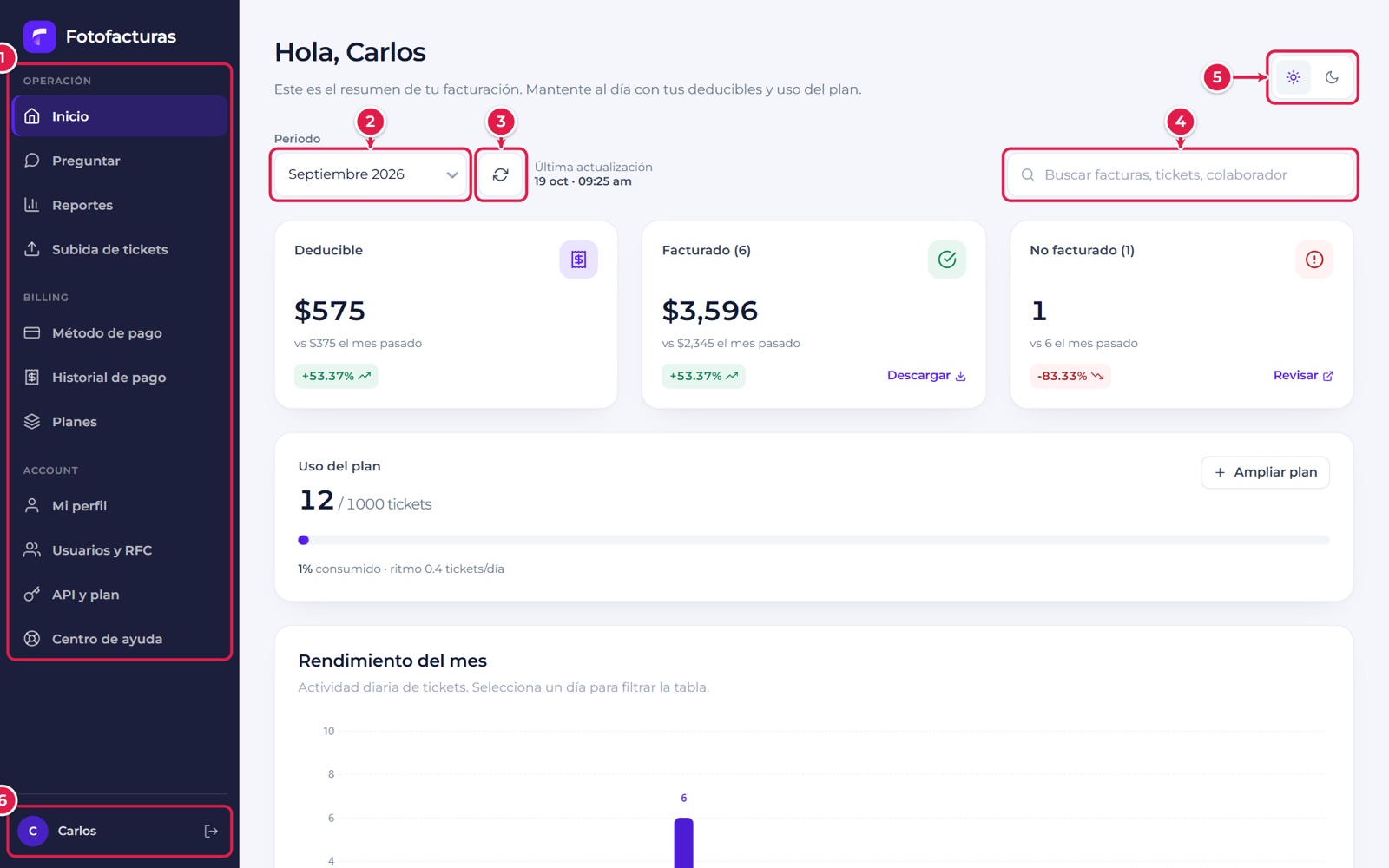
- Side menu: navigation between sections. The active section is highlighted.
- Periodo: changes the month being analyzed. It shows the months of the current year, up to the current month. The chosen month is kept in the web address, so you can share or bookmark the link.
- Actualizar: reloads the data. Below it you’ll see the date and time of the last update.
- Search: filters the invoice list by merchant, ticket number or collaborator.
- Theme: switches between light and dark mode (see section 12).
- Your user: the name of whoever is signed in, and the button to sign out.
4.2 Monthly indicators
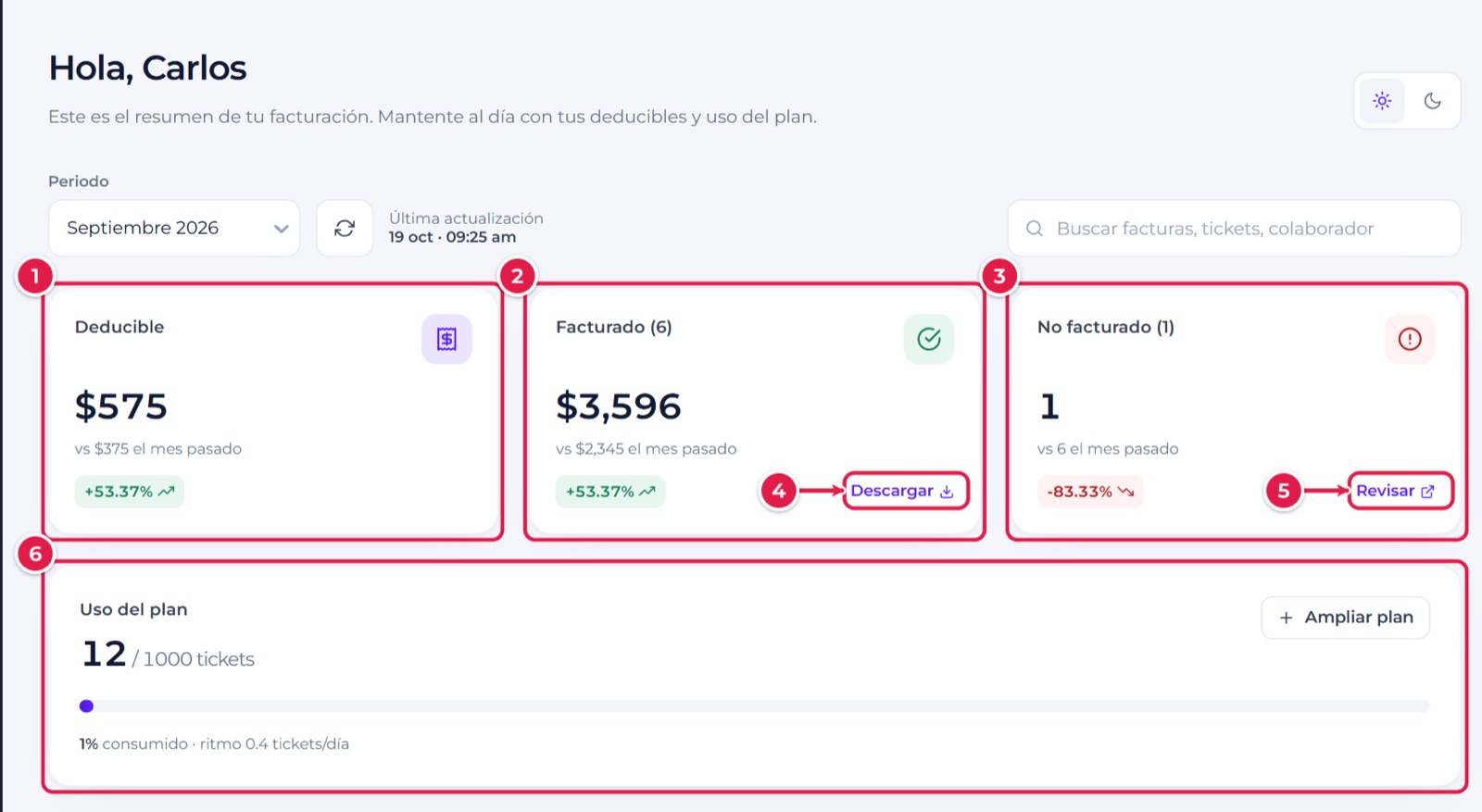
- Deducible: deductible VAT from the month’s invoices, compared with the previous month.
- Facturado: amount invoiced and number of invoices. Clicking the card filters the invoice list to invoiced tickets.
- No facturado: tickets that are still in progress and don’t have an invoice yet.
- Descargar: downloads all the month’s invoices (PDF and XML) in a ZIP.
- Revisar: filters the list to tickets that are still in progress.
- Uso del plan: tickets used against the monthly limit, percentage used and daily pace. A notice appears when usage reaches 80% and 100%. Ampliar plan opens a message to support.
The green and red arrows show how much each figure went up or down compared with the previous month.
4.3 Charts
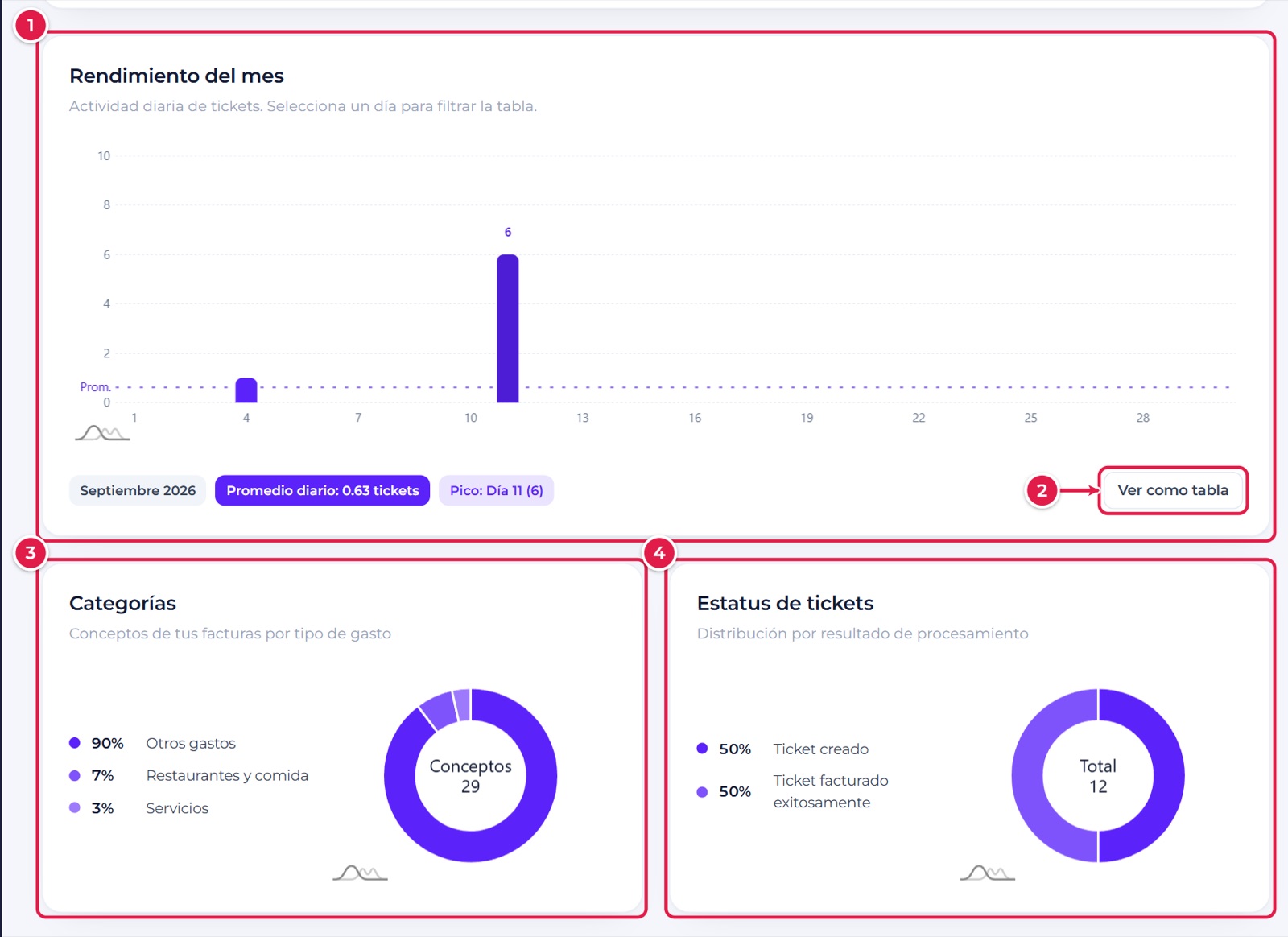
- Rendimiento del mes: tickets captured per day. The dotted line is the daily average and the labels mark the peak day. Clicking a bar filters the invoice list to that day.
- Ver como tabla: shows the same data as a table.
- Categorías: invoice line items grouped by type of expense (for example, restaurants and food, services or other expenses).
- Estatus de tickets: how the month’s tickets break down by result.
4.4 My invoices
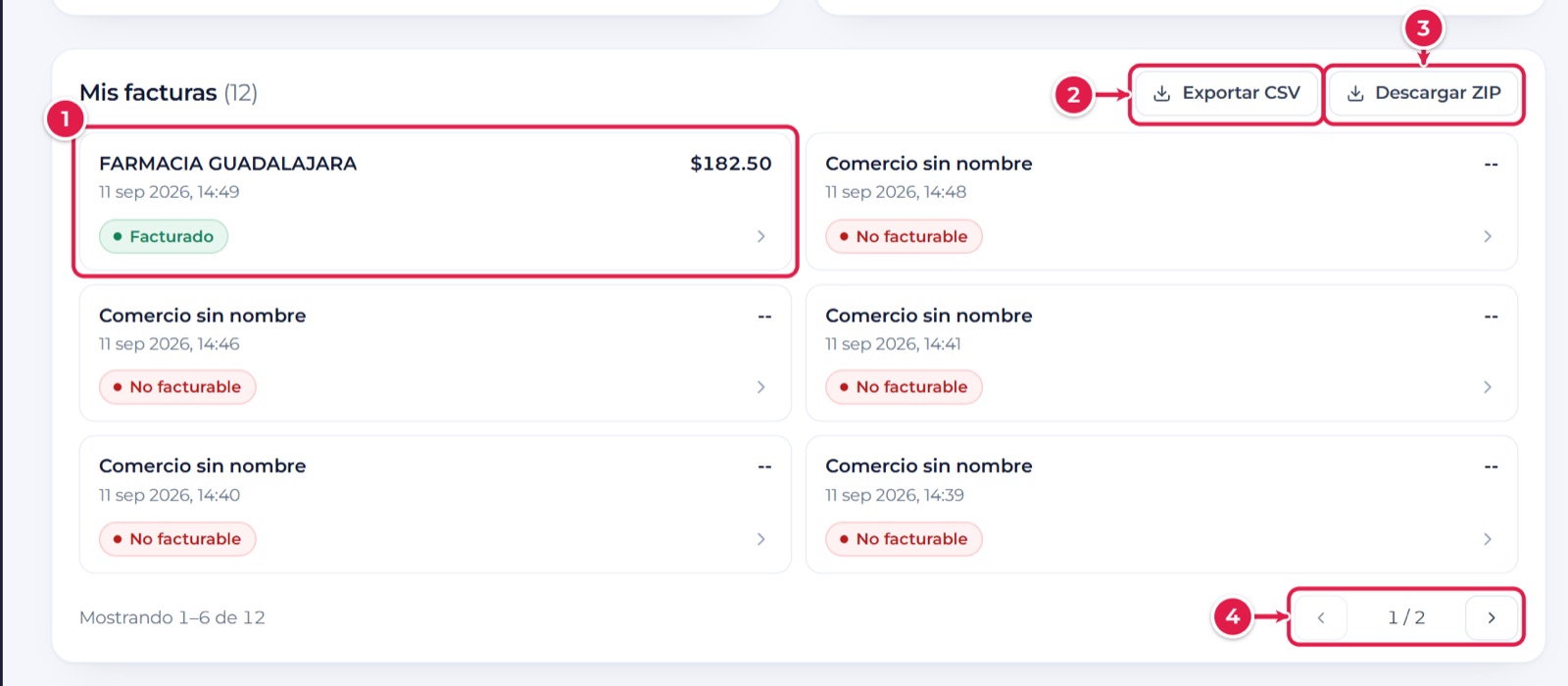
- Invoice card: merchant, date, amount and status. Clicking it opens the detail.
- Exportar CSV: downloads the invoices currently filtered on screen as a spreadsheet.
- Descargar ZIP: downloads the month’s invoices with their files.
- Pagination: the list shows 6 invoices per page.
When you filter or search, status chips with their counts appear, along with a Limpiar filtros button to see everything again.
4.5 Searching for an invoice
Type the merchant, the ticket number or the collaborator’s name in the search box in the header. The list updates as you type.
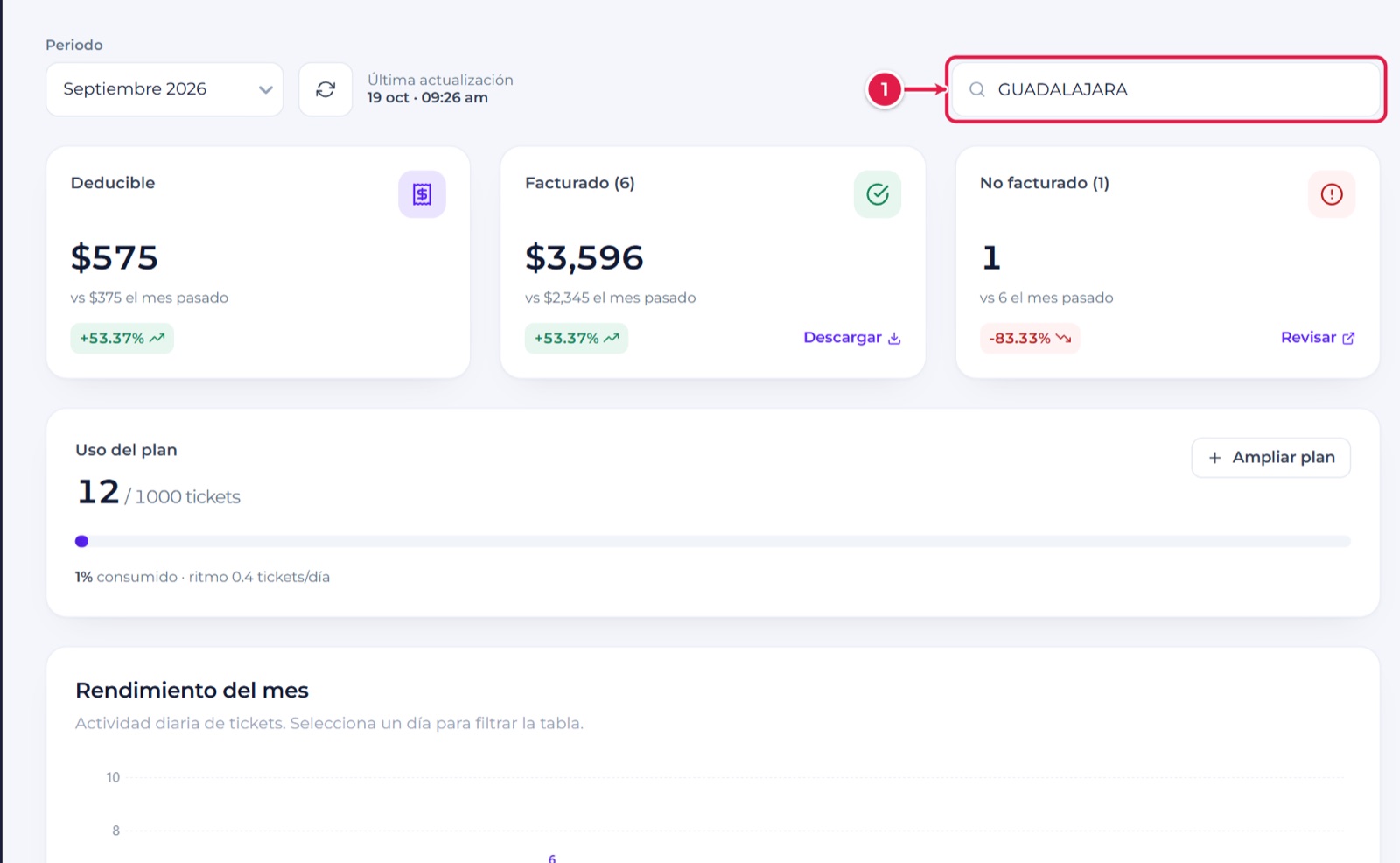
- Search: the text filters the list below.
5. Invoice detail
Click any invoice in the list to see all its information.
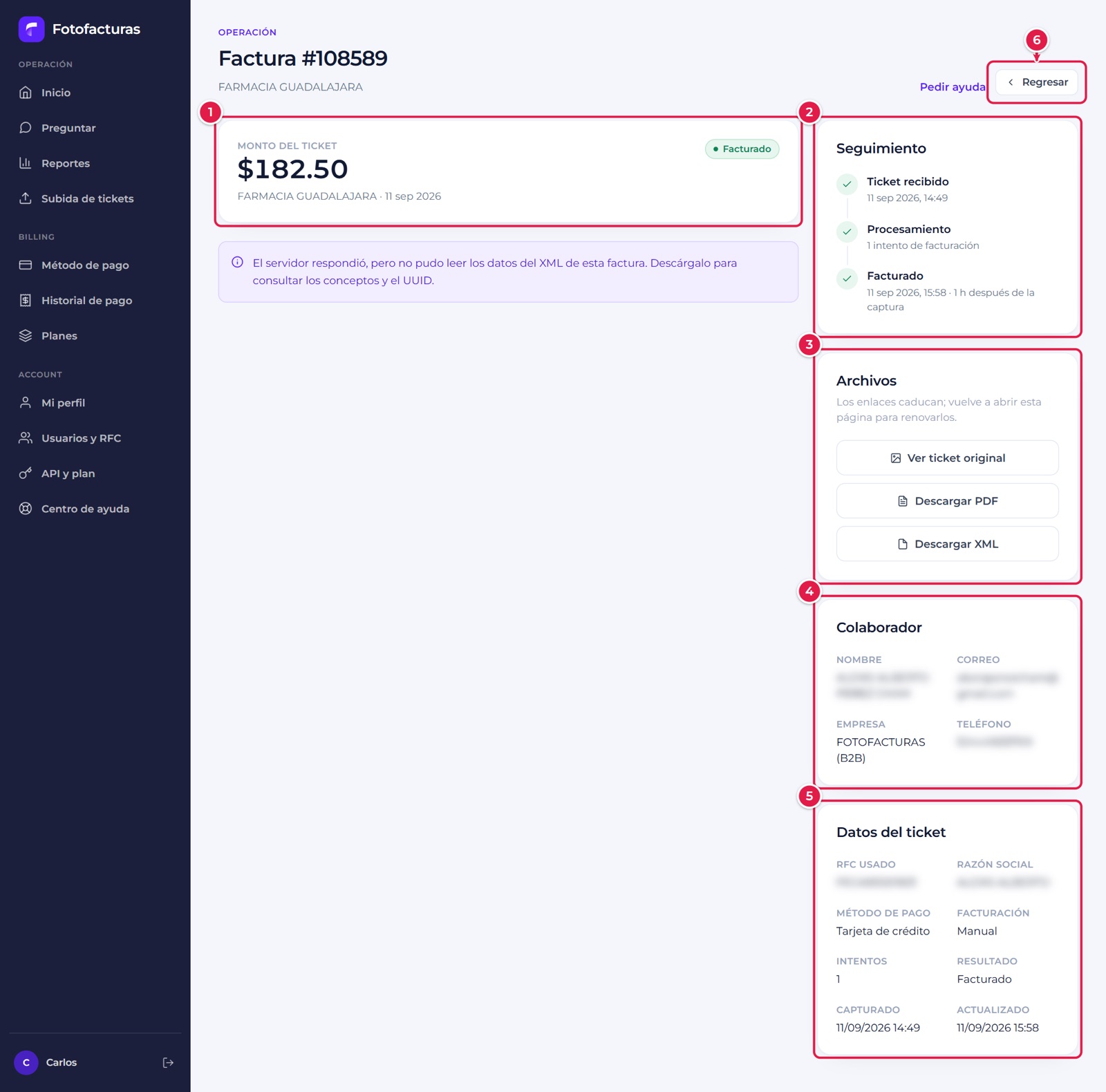
- Monto del ticket: amount, merchant, date and status. If the invoice’s XML is already available, the tax data (issuer, recipient, UUID, line items and taxes) is also shown here. When the XML can’t be read yet, the platform says so and asks you to download it.
- Seguimiento: a timeline with the ticket capture, the invoicing attempts and the result, with the elapsed time.
- Archivos: Ver ticket original, Descargar PDF and Descargar XML. The links expire; they’re renewed when you open the page again.
- Colaborador: name, email, phone and company of whoever the invoice was issued for.
- Ticket data: RFC and legal name used, payment method, invoicing type, attempts, result and dates.
- Regresar: goes back to the list. Pedir ayuda opens the Help center with the ticket number already included.
If the ticket was rejected, the reason appears at the top of the detail. The statuses a ticket can have and what they mean are in Catalogs and Ticket flow.
6. Uploading tickets
Subida de tickets menu. Use it to generate an invoice from a photo of a ticket.
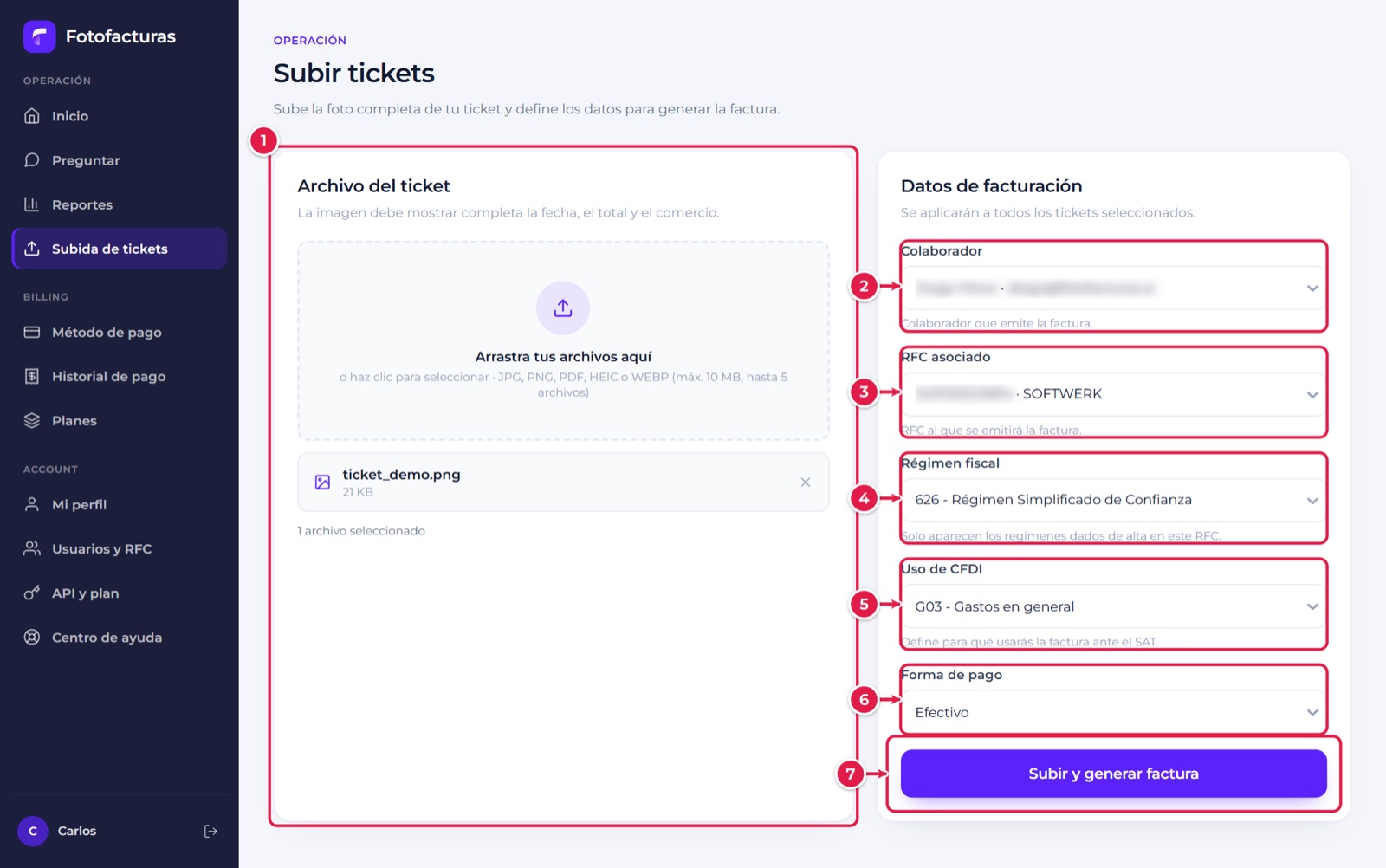
Step by step
- Attach the photo. Drag the file into the box or click to choose it. You can upload up to 5 images at once, up to 10 MB each, in JPG, PNG or WEBP format. The image must show the full date, total and merchant.
- Colaborador. Choose who the invoice is issued for.
- RFC asociado. Choose the collaborator’s RFC to invoice to.
- Régimen fiscal. Only the regimes registered for that RFC appear.
- Uso de CFDI. Defines what you’ll use the invoice for before the SAT (for example, G03 – General expenses).
- Forma de pago. How the ticket was paid (for example, cash or card).
- Subir y generar factura. The button is enabled once the file and all the data are complete. If you added several files, it says Subir y generar facturas and applies the same data to all of them.
When it’s done you’ll see the message Ticket subido correctamente (or N tickets subidos correctamente). Each photo counts as one ticket in your plan. You can follow its progress in Home.
Important: you can’t upload tickets for a collaborator without an active RFC. First register their tax certificate in Companies and collaborators.
7. Reports
Reportes menu. It’s an analysis screen: it doesn’t repeat the Home dashboard, but answers who spends, what gets invoiced and what needs follow-up.
7.1 Period, filters and tabs
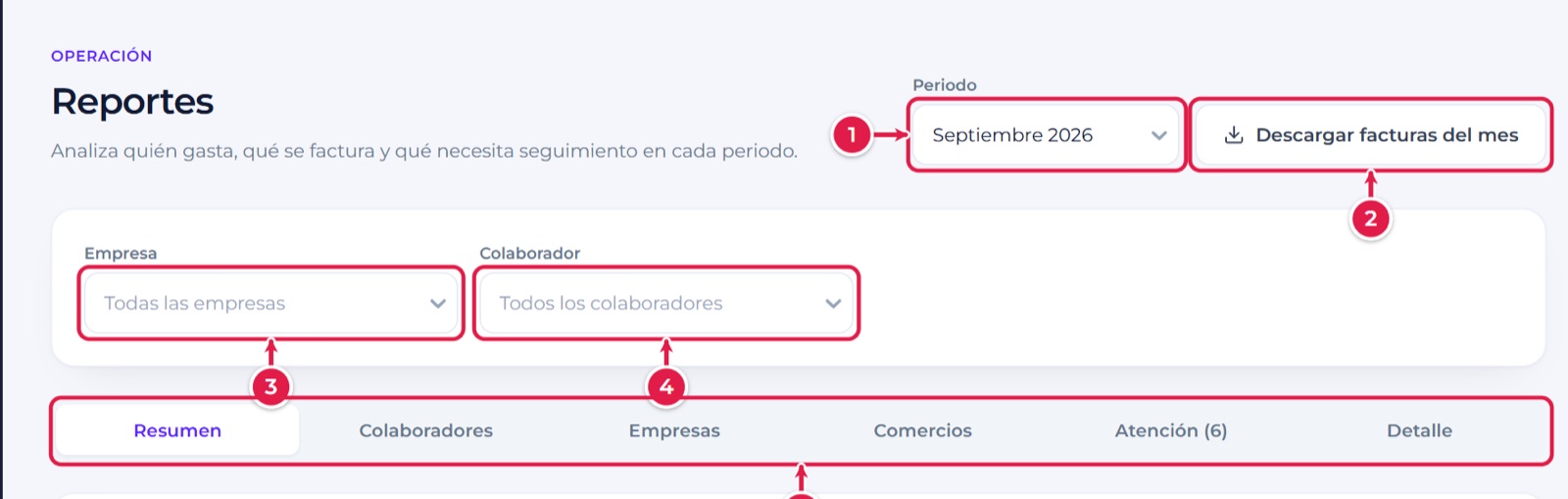
- Periodo: the month being analyzed.
- Descargar facturas del mes: ZIP with the period’s PDFs and XMLs.
- Empresa: limits the analysis to one company.
- Colaborador: limits the analysis to one person.
- Tabs: Resumen, Colaboradores, Empresas, Comercios, Atención and Detalle. The company and collaborator filters apply to all of them.
7.2 Summary
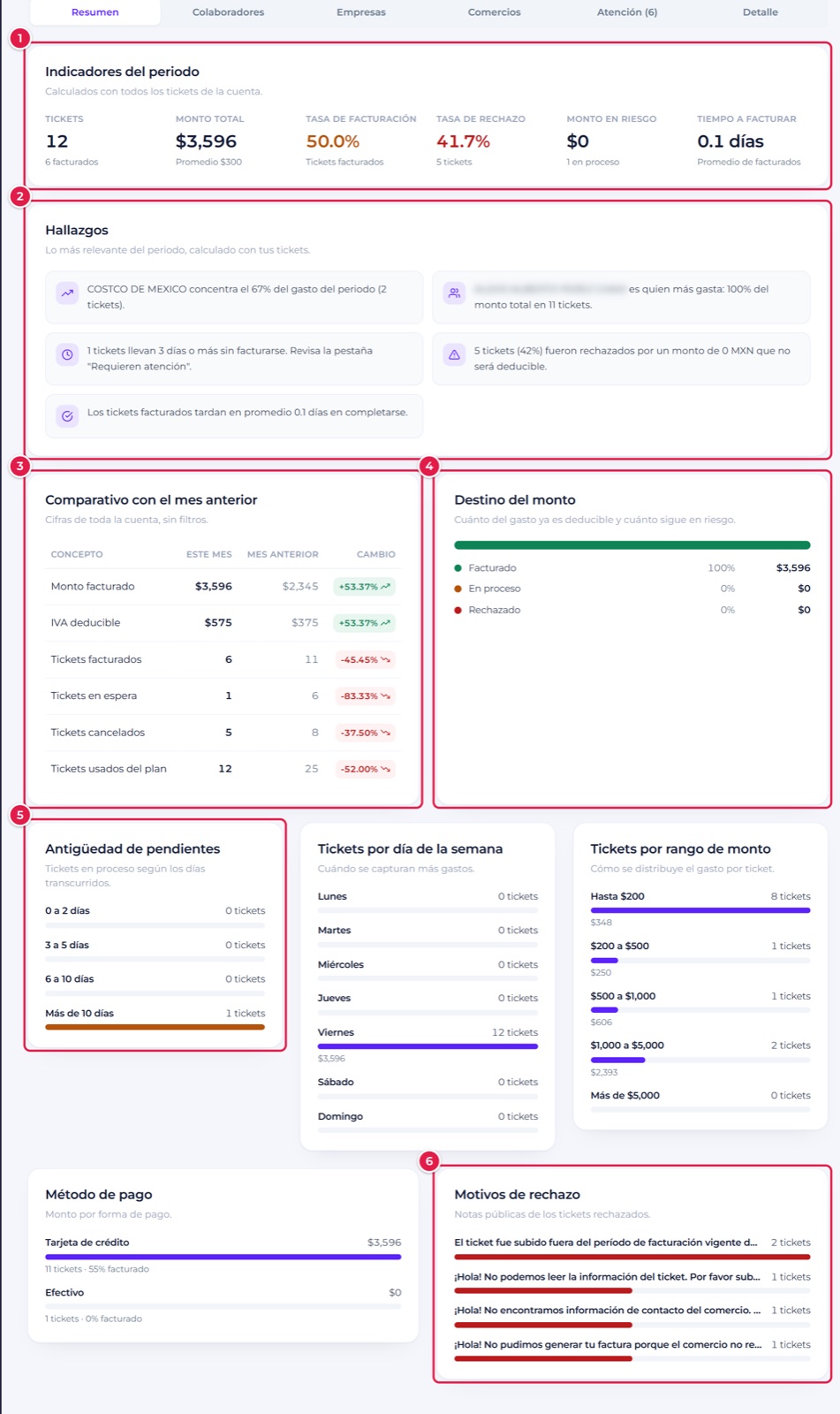
- Indicadores del periodo: tickets, total amount, invoicing rate (percentage of tickets invoiced), rejection rate, amount at risk (tickets still in progress) and average time to invoice.
- Hallazgos: sentences generated from your data, for example which merchant concentrates the most spending, who spends the most or how many tickets have gone several days without being invoiced.
- Comparativo con el mes anterior: amount invoiced, deductible VAT and ticket counts, with the percentage change. This box covers the whole account, without filters.
- Destino del monto: how much of the spending is already deductible (invoiced), how much is in progress and how much was rejected.
- Antigüedad de pendientes: tickets in progress by the number of days elapsed.
- Motivos de rechazo: the most frequent reasons tickets were rejected.
Further down, the Summary includes tickets by day of the week, by amount range and the amount by payment method.
7.3 Collaborators, Companies and Merchants
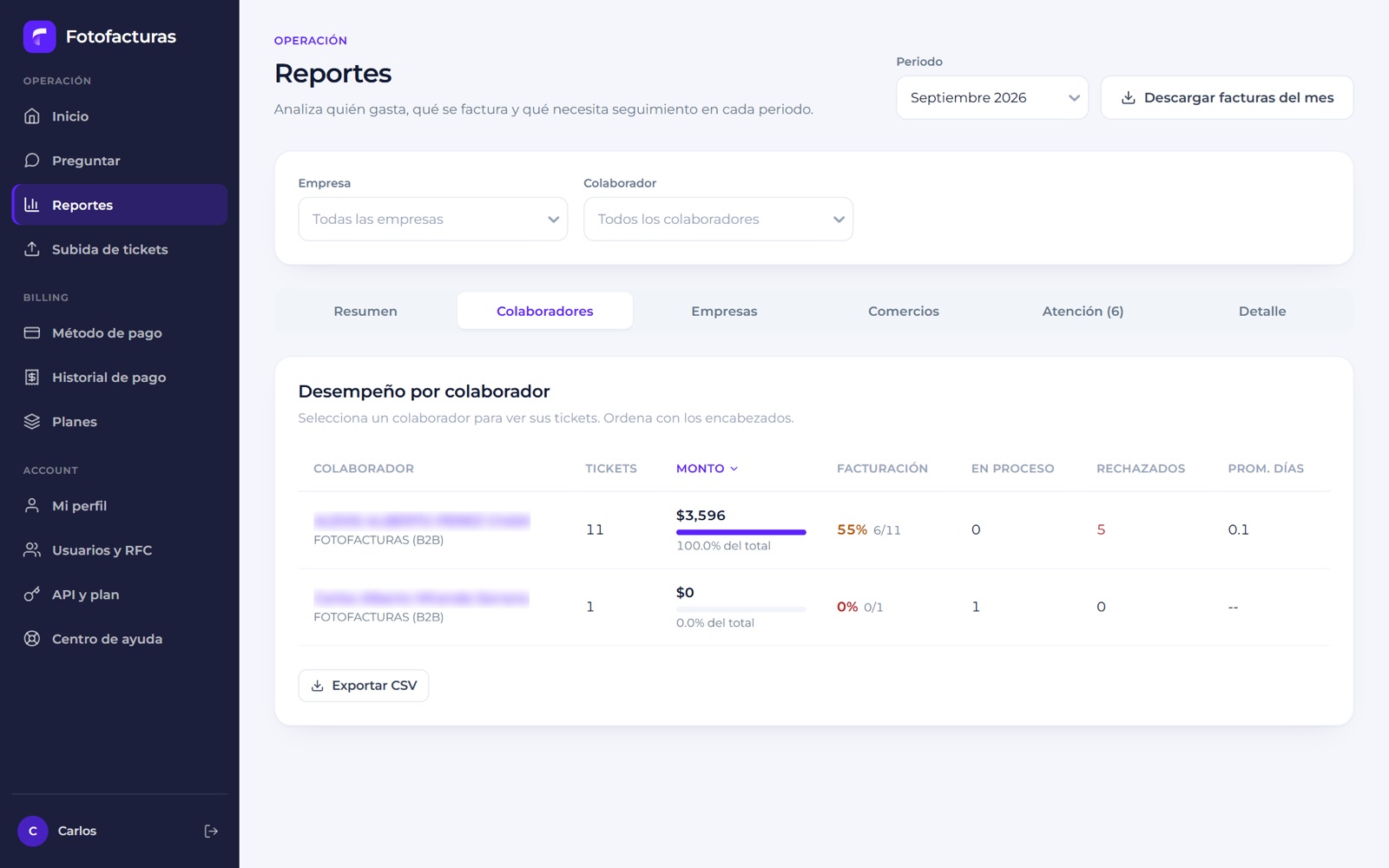
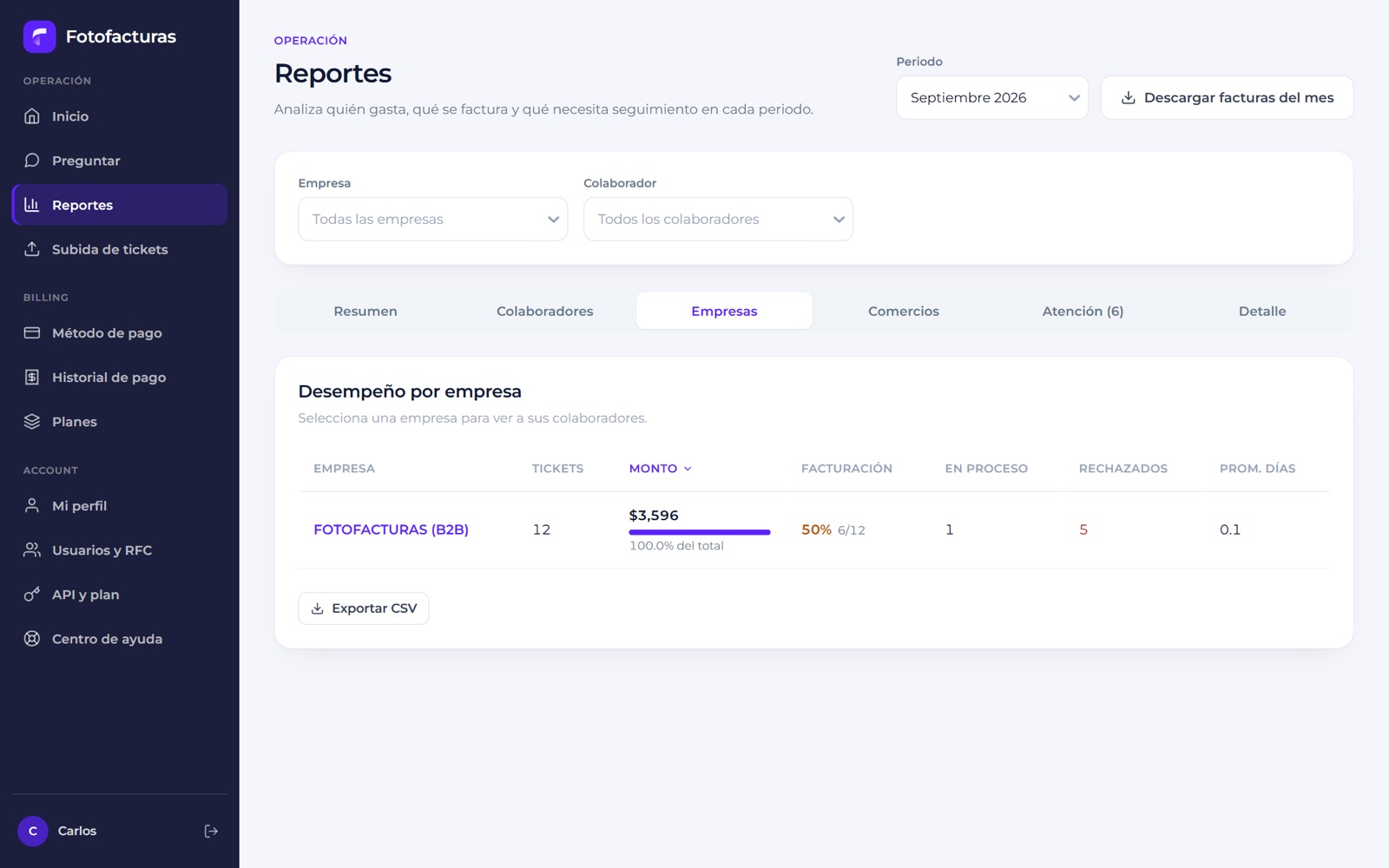
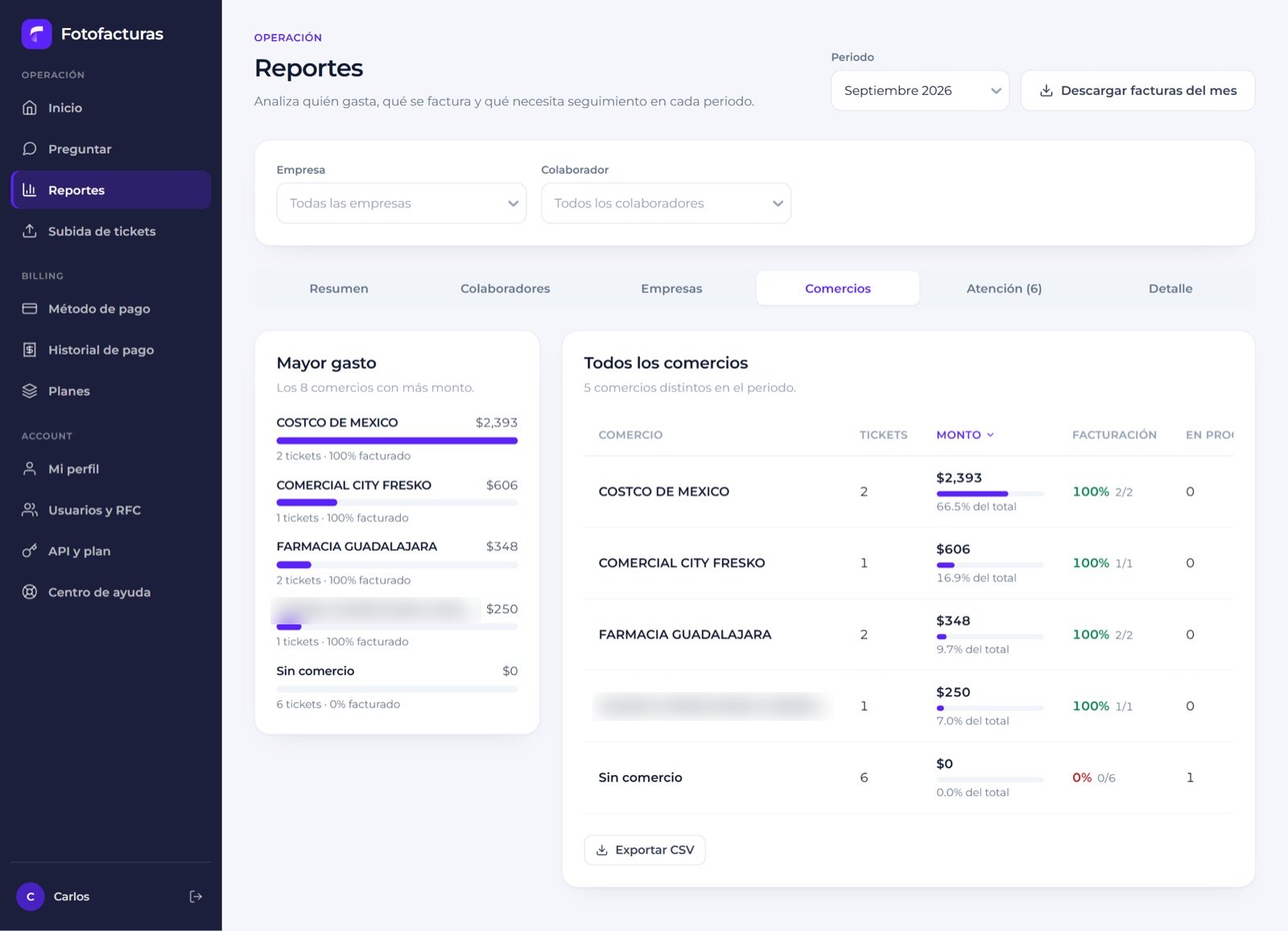
All three tabs have the same layout: a table with tickets, amount (with its percentage of the total), invoicing rate, tickets in progress, rejected tickets and average days.
- Click a column header to sort the table.
- Click a name to see only their tickets.
- Exportar CSV downloads the table.
Companies and Merchants follow the same layout:
7.4 Attention and Detail
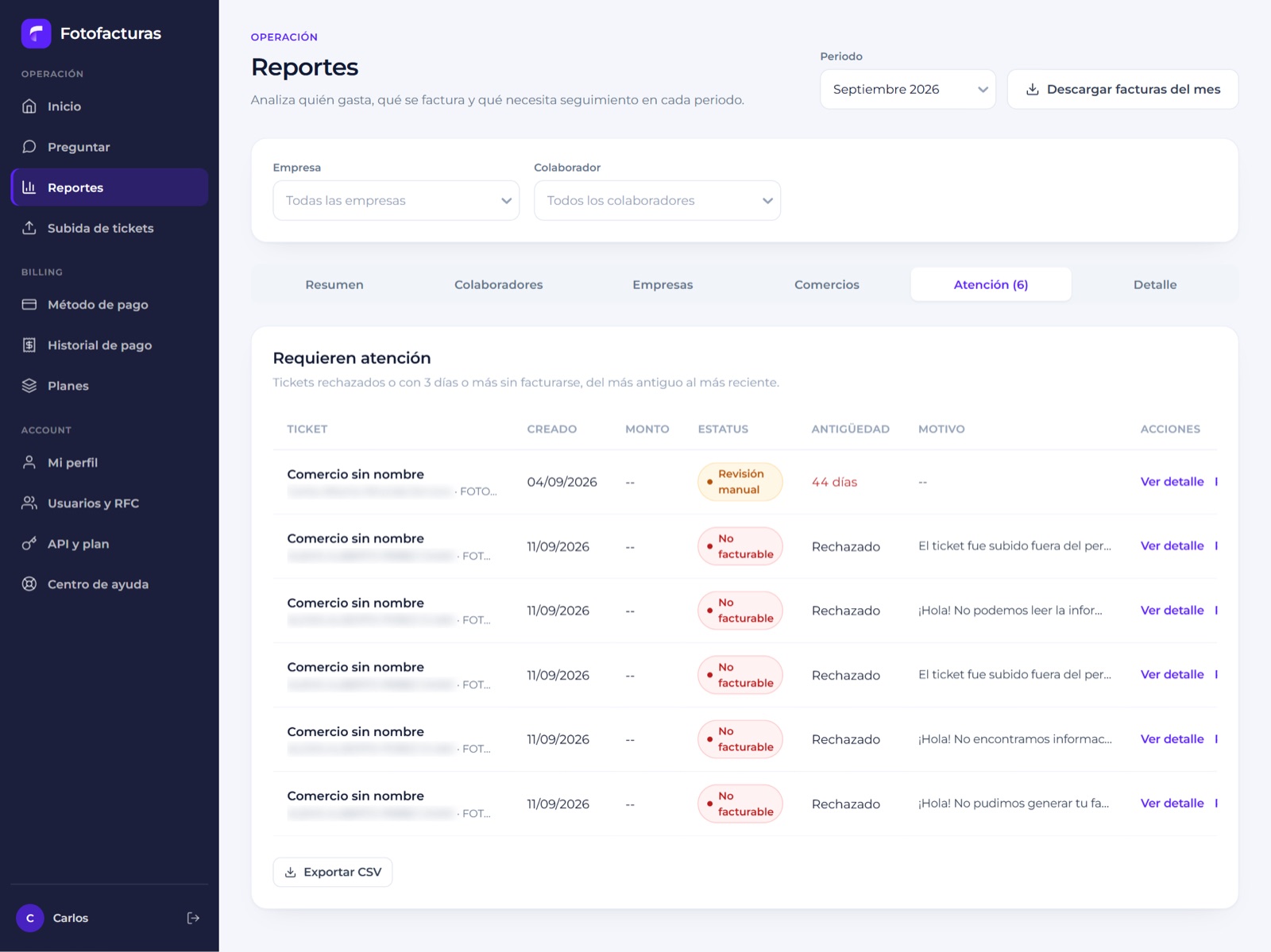
Atención lists the tickets that need follow-up: rejected ones and those that have gone 3 days or more without being invoiced, oldest first. Each row shows the status, the age and the reason, with links to Ver detalle and to the help request.
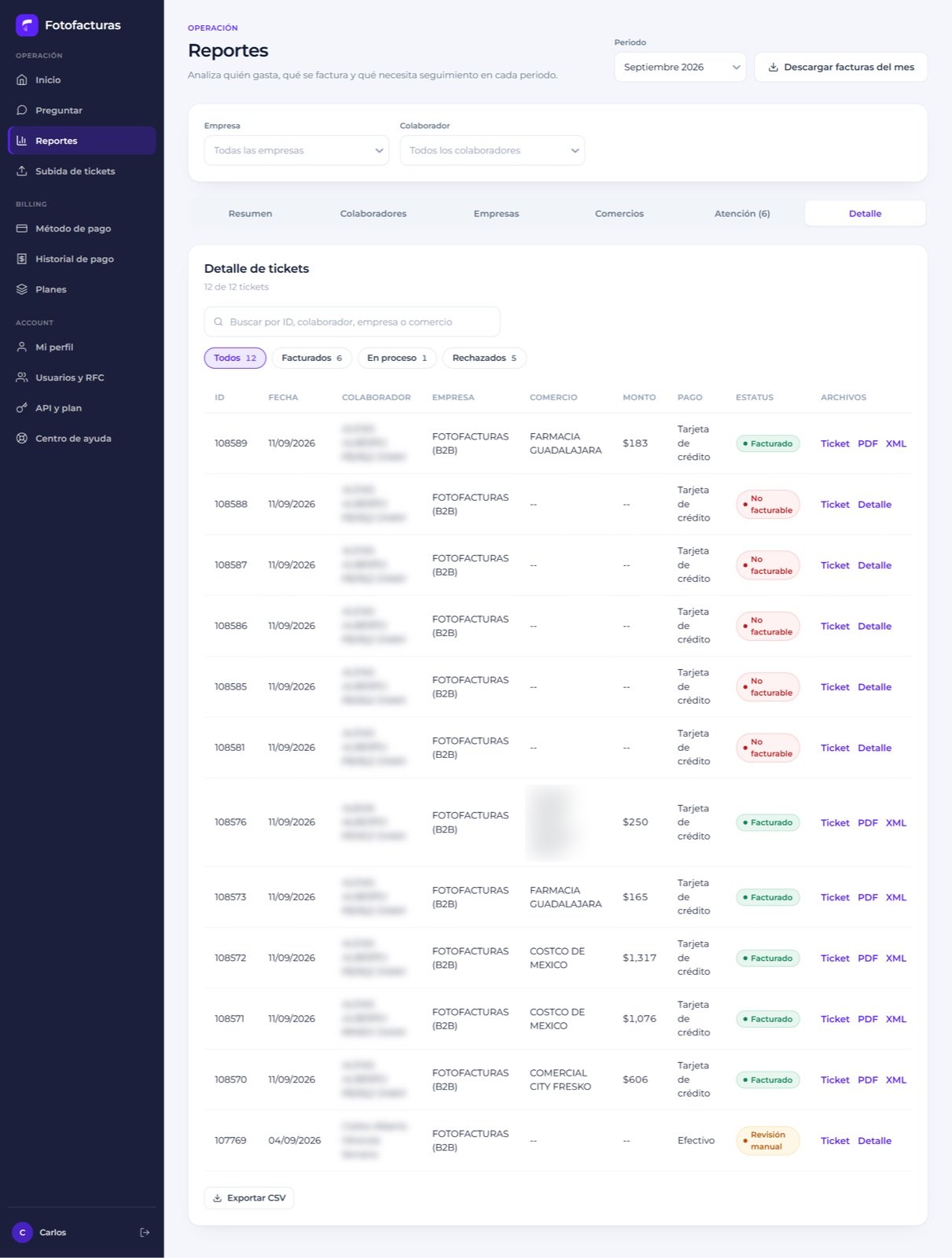
Detalle is the full list of the period’s tickets, with a search box, status filters and 15 rows per page.
8. Ask (Factu assistant)
Preguntar menu. Factu is an assistant that answers with your account’s data. It doesn’t use artificial intelligence: it recognizes keywords and builds the answer from your tickets, your plan and your payments.
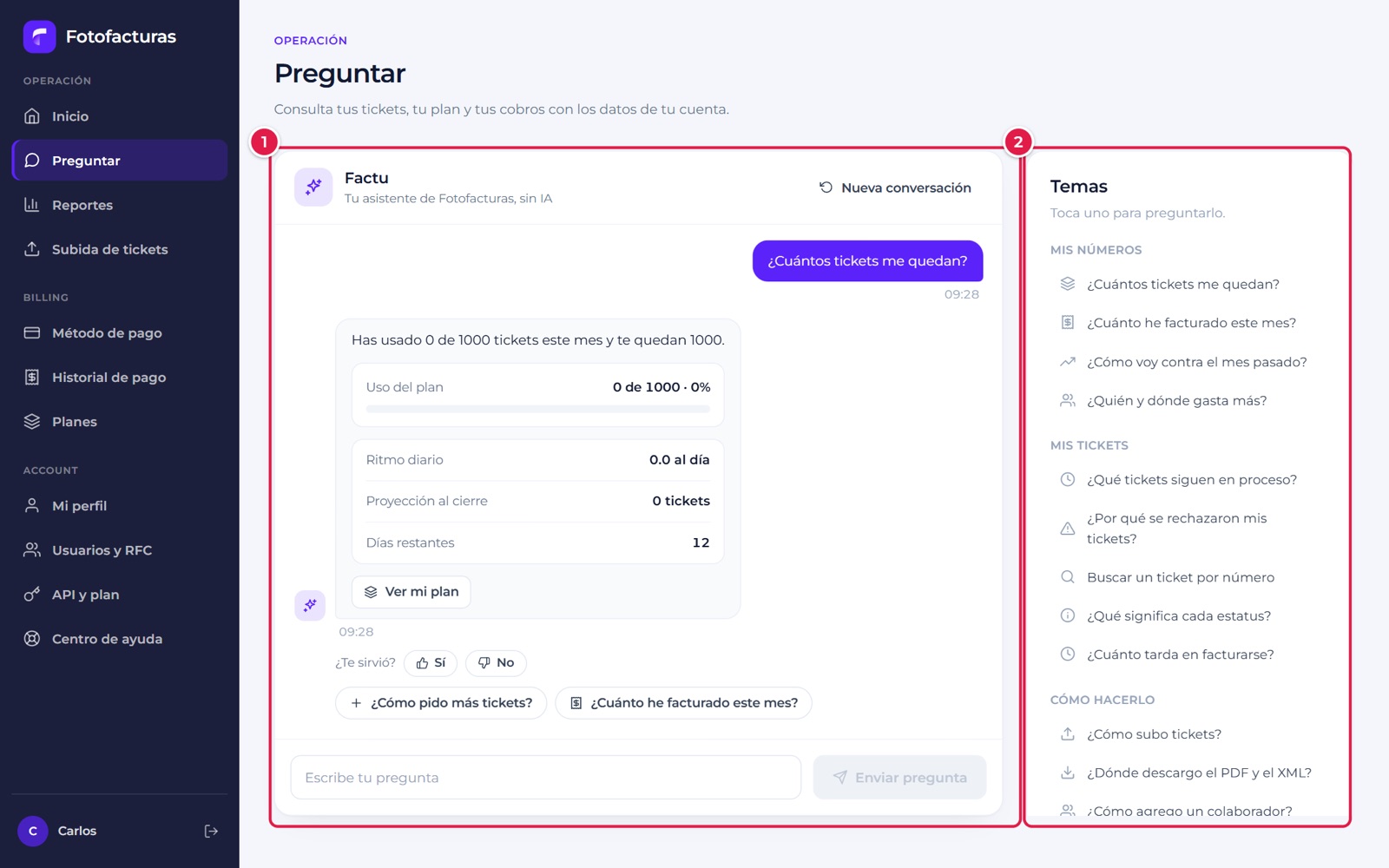
- Conversation: type your question below or pick one of the suggestions. Each answer can include figures, tickets, steps or links. Rate the answer with ¿Te sirvió? (Sí / No), and Nueva conversación restarts the chat.
- Temas: ready-made questions to tap, grouped into Mis números, Mis tickets and Cómo hacerlo.
Examples of what you can ask (in Spanish):
- ¿Cuántos tickets me quedan? (How many tickets do I have left?)
- ¿Cuánto he facturado este mes? (How much have I invoiced this month?)
- ¿Qué tickets siguen en proceso? (Which tickets are still in progress?)
- ¿Por qué se rechazaron mis tickets? (Why were my tickets rejected?)
- A ticket number, for example
#108589 - ¿Cómo subo tickets? / ¿Dónde descargo el PDF y el XML? (How do I upload tickets? / Where do I download the PDF and XML?)
Looking up a ticket by number only covers the current month. If it doesn’t understand the question, it offers suggestions. If you ask, or after two answers that didn’t help, it offers to put you in touch with a person and shows you the message before sending it.
Factu on the dashboard
On Home there’s a floating Factu button (bottom-right corner) that opens a compact version of the same assistant without leaving the screen.
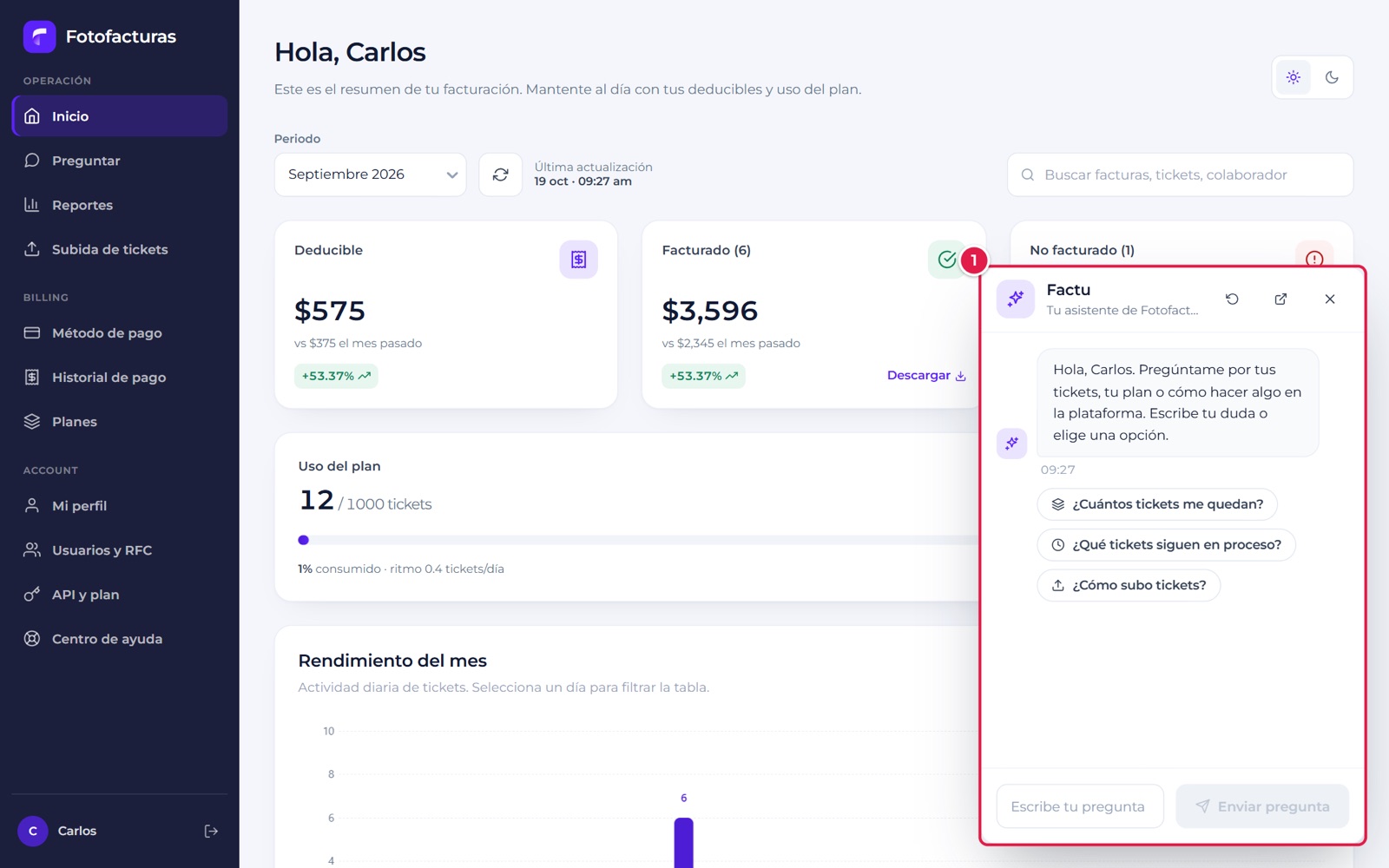
- Factu panel: keeps the conversation while it’s closed. The icon on the right expands it to the full Preguntar screen.
9. Plans and payments
9.1 Plans
Planes menu.
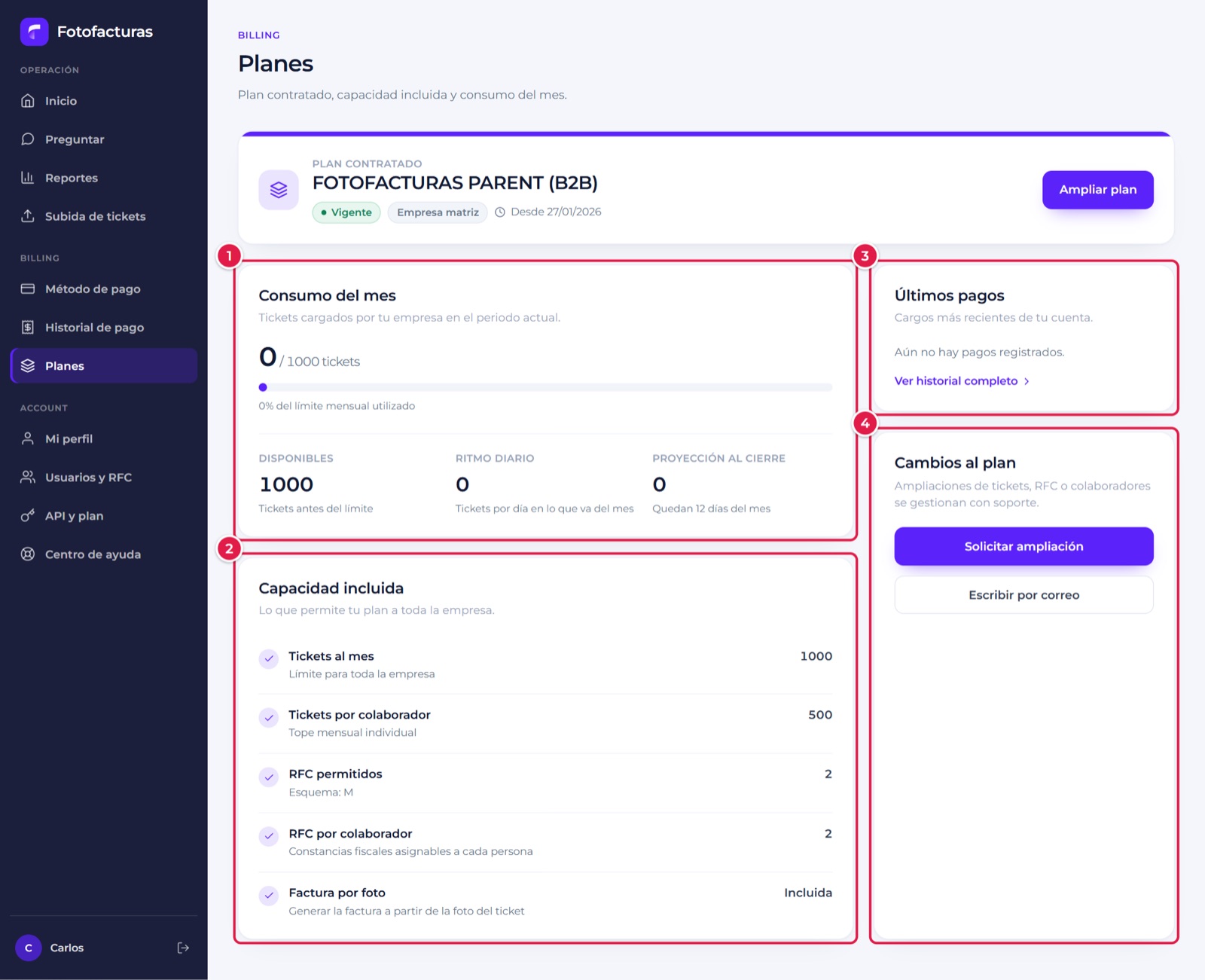
- Consumo del mes: tickets used against the limit, tickets available, daily pace and month-end projection.
- Capacidad incluida: tickets per month, tickets per collaborator, RFCs allowed, RFCs per collaborator and invoice by photo.
- Últimos pagos: the most recent charges and access to the full history.
- Cambios al plan: Solicitar ampliación (WhatsApp) or Escribir por correo to ask for more tickets, RFCs or collaborators.
9.2 Payment history
Historial de pago menu.
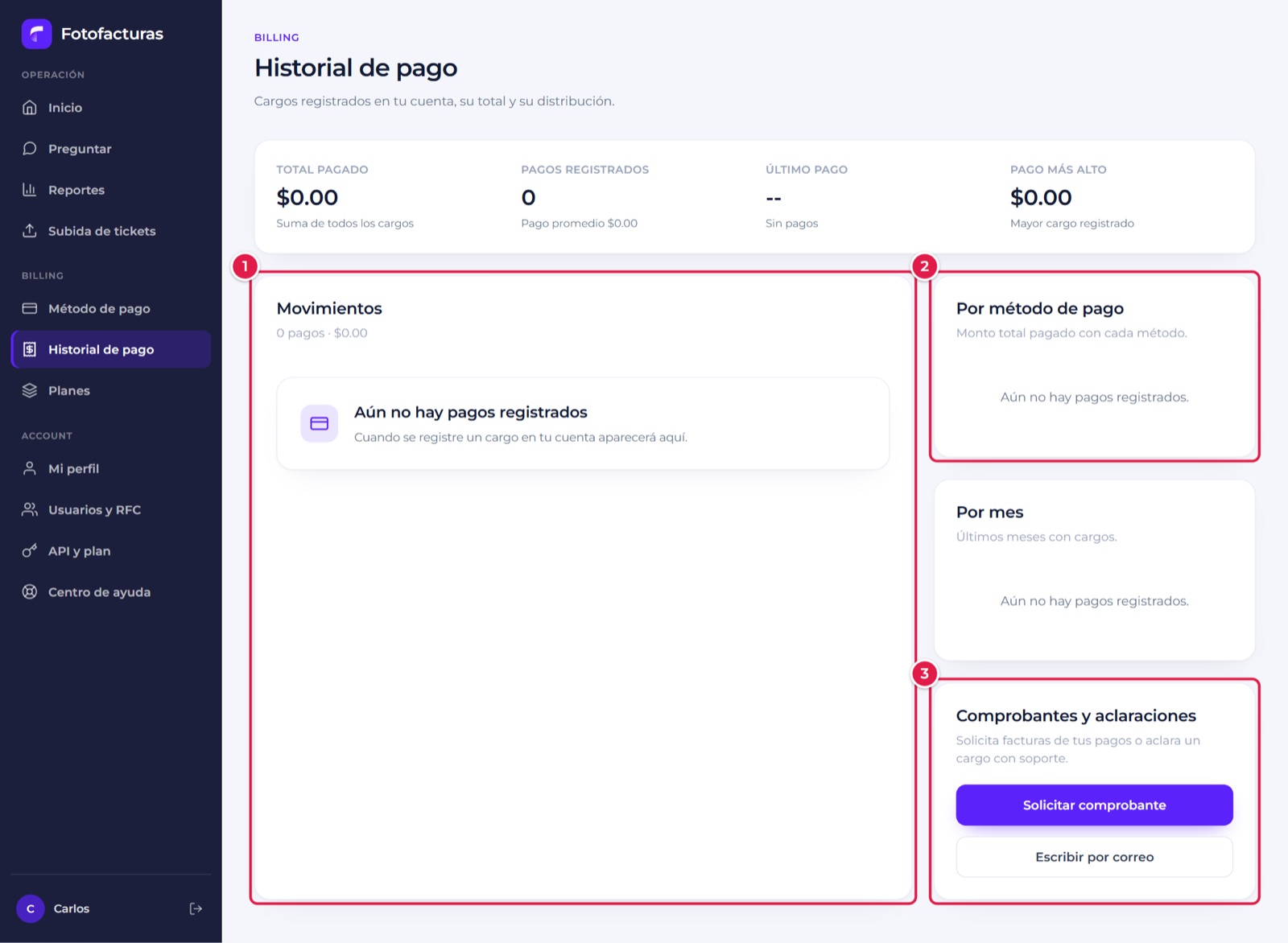
- Movimientos: recorded charges, with filters by year and payment method, 10 per page and CSV export.
- Por método de pago and Por mes: how payments break down.
- Comprobantes y aclaraciones: request an invoice for your payments or dispute a charge with support.
The top strip summarizes the total paid, the number of payments, the last payment and the highest payment.
9.3 Payment method
Método de pago menu.
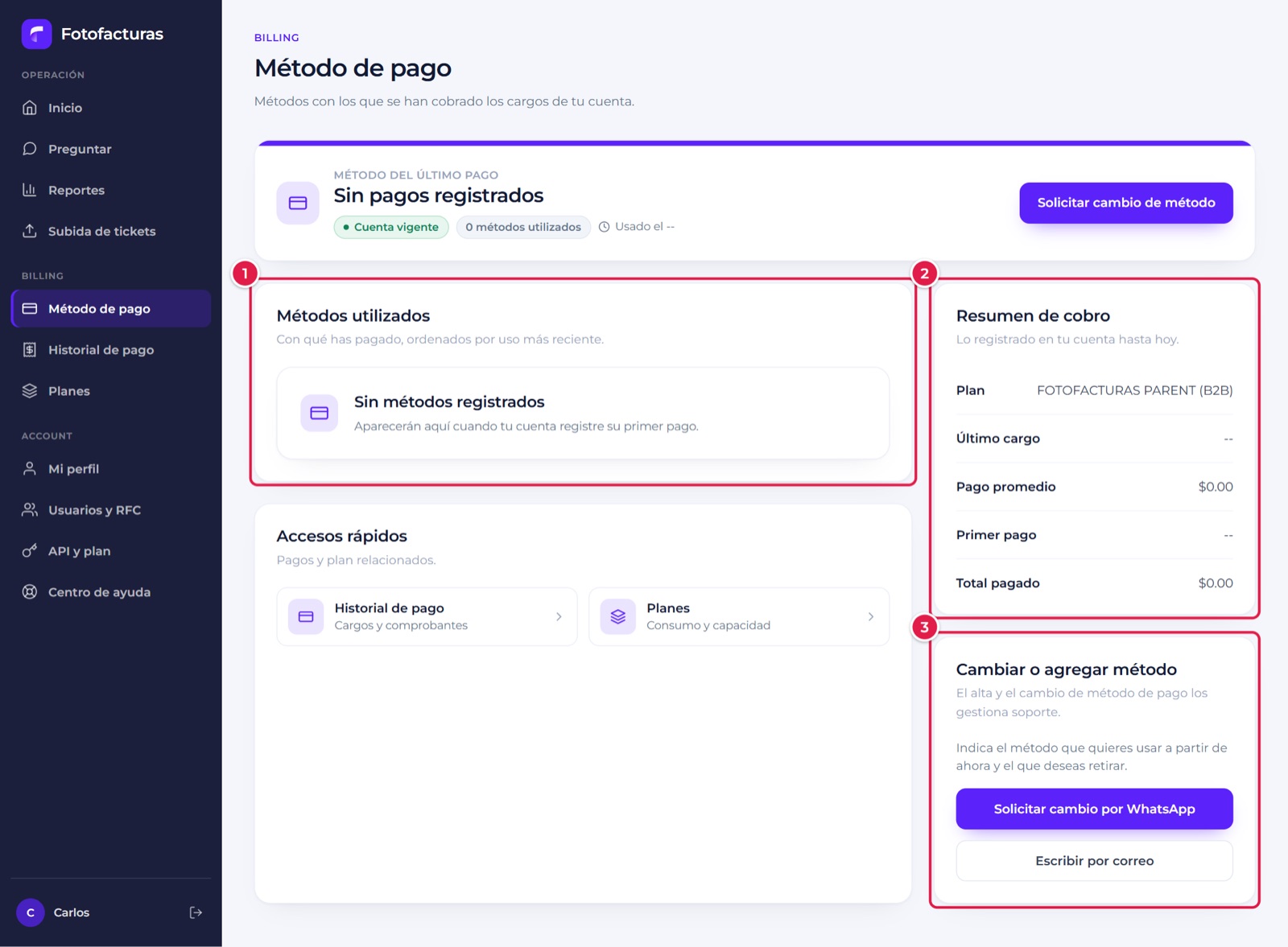
- Métodos utilizados: payment methods your account’s charges have been paid with, sorted by most recent use.
- Resumen de cobro: plan, last charge, average payment, first payment and total paid.
- Changing or adding a method: adding or changing a payment method is handled by support, over WhatsApp or email.
The demo account doesn’t have any payments yet, which is why these three screens show empty states. With recorded charges, the totals, lists and breakdowns fill in.
10. My account
10.1 My profile
Mi perfil menu. Shows your account data.
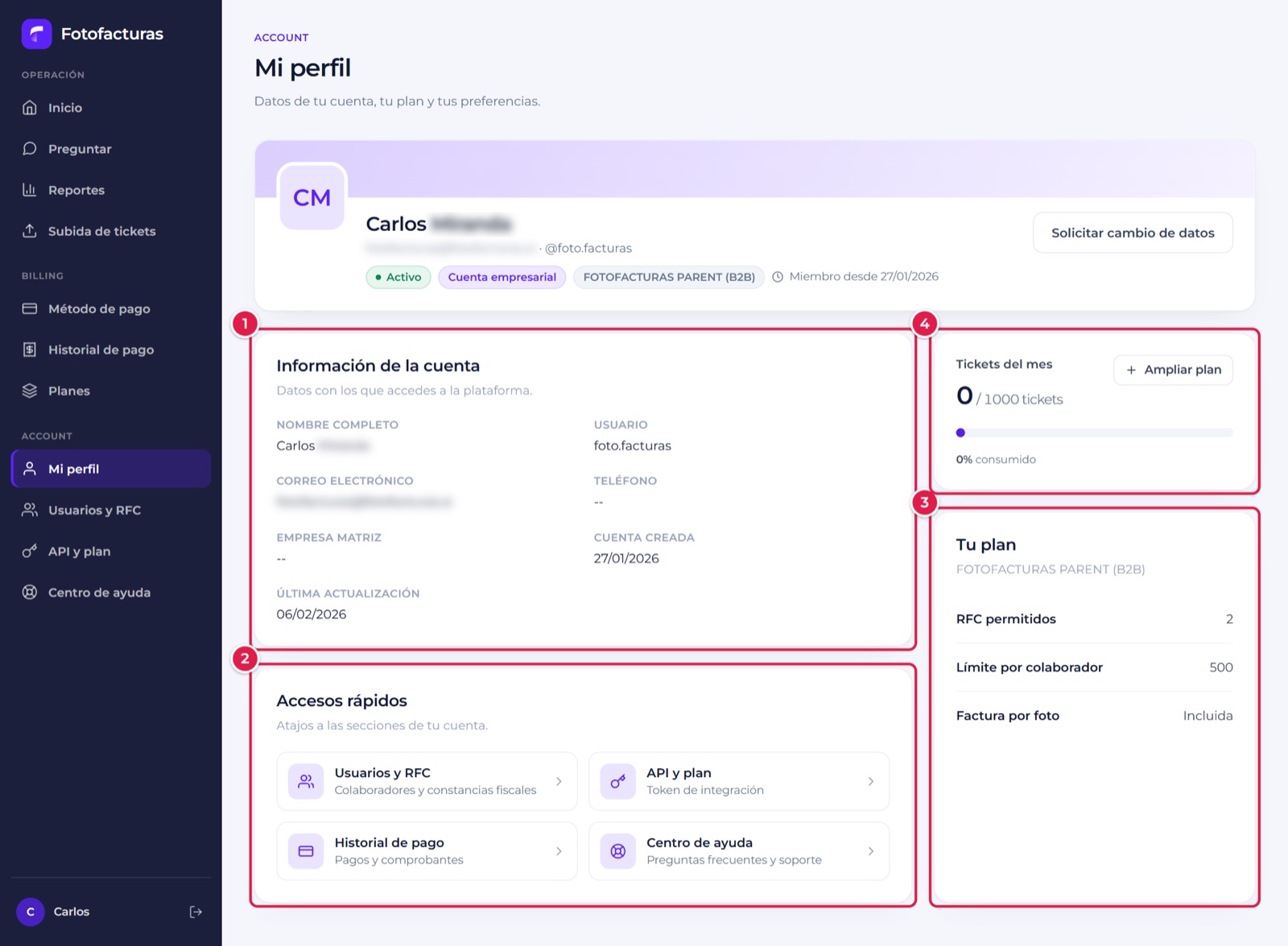
- Información de la cuenta: name, username, email, phone, parent company and sign-up and last-update dates.
- Accesos rápidos: shortcuts to Empresas y colaboradores, Webhooks, API y plan, Historial de pago and Centro de ayuda.
- Tu plan: RFCs allowed, per-collaborator limit and whether invoice by photo is included.
- Tickets del mes: plan usage, with access to Ampliar plan.
Profile data is read-only. To change it, click Solicitar cambio de datos, which opens a message to support.
10.2 Companies and collaborators
Empresas y colaboradores menu. This is where you build your account’s structure and add the people who invoice.
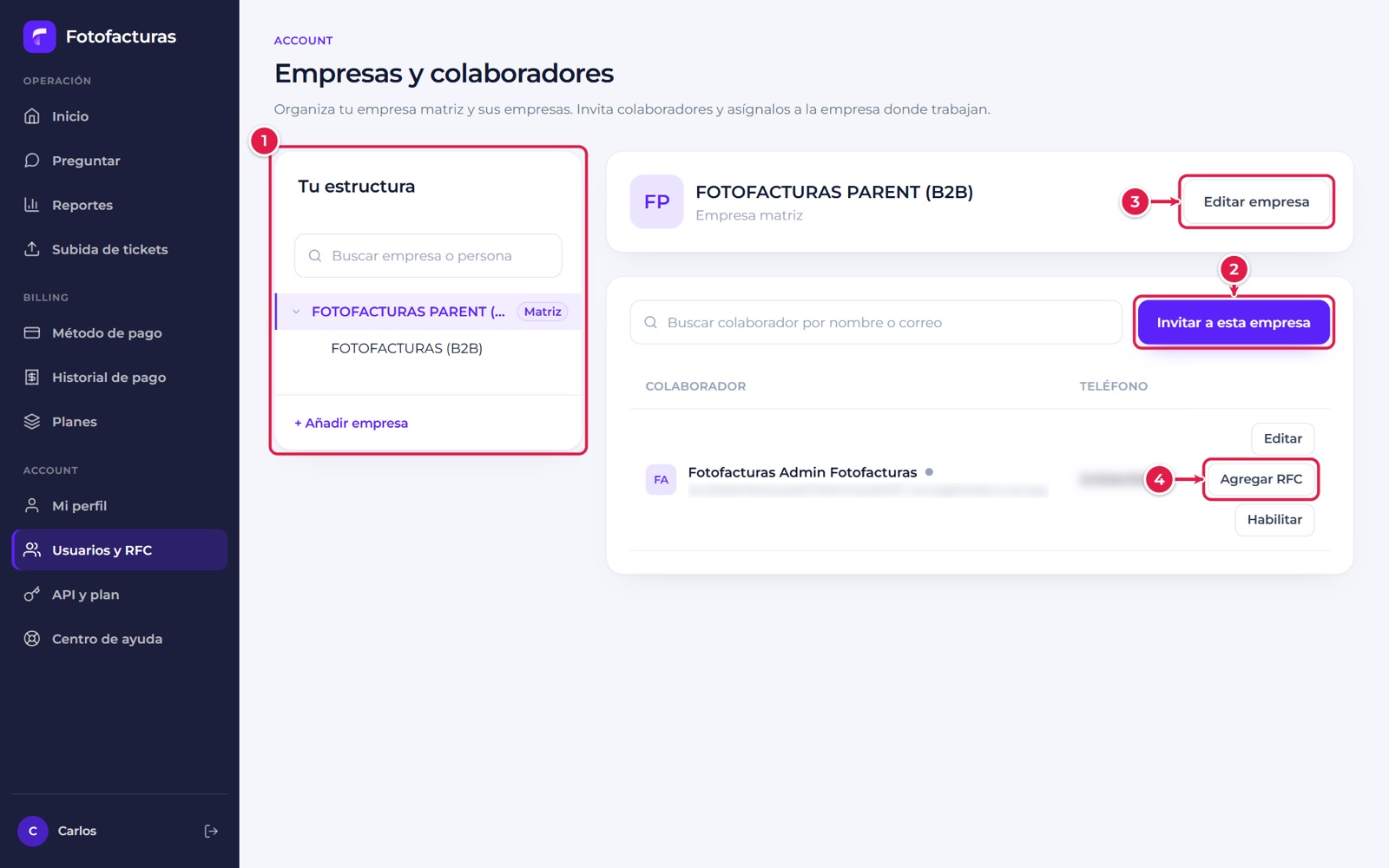
- Tu estructura: tree with the parent company and its companies. Select one to see its collaborators. You can search by company or person and create a new one with + Añadir empresa.
- Invitar a esta empresa: adds a collaborator to the selected company.
- Editar empresa: edits the selected company’s data.
- Per-collaborator actions: Editar, Agregar RFC (or update their tax certificate) and Habilitar / Deshabilitar. The dot next to the name shows whether they’re active.
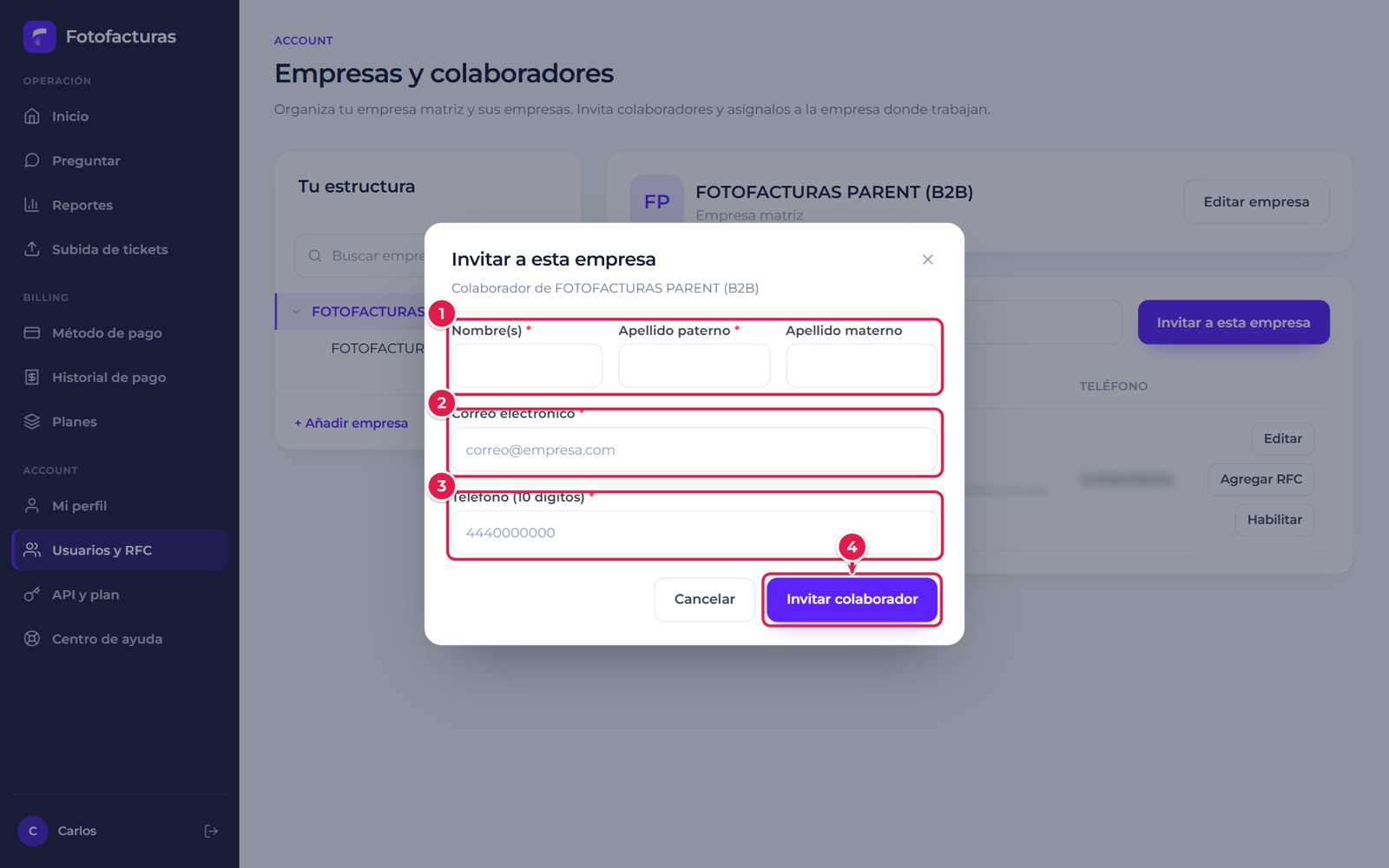
Adding a collaborator
- Select the company in Tu estructura.
- Click Invitar a esta empresa.
-
Fill in the data:
- Nombre(s) (first name) and Apellido paterno (first last name) are required; Apellido materno (second last name) is optional.
- Correo electrónico (email, required).
- Teléfono, 10 digits (required).
-
Click Invitar colaborador.
Adding a collaborator’s RFC
When you finish creating the collaborator, the RFC form opens automatically. You can also open it later with Agregar RFC on their row.
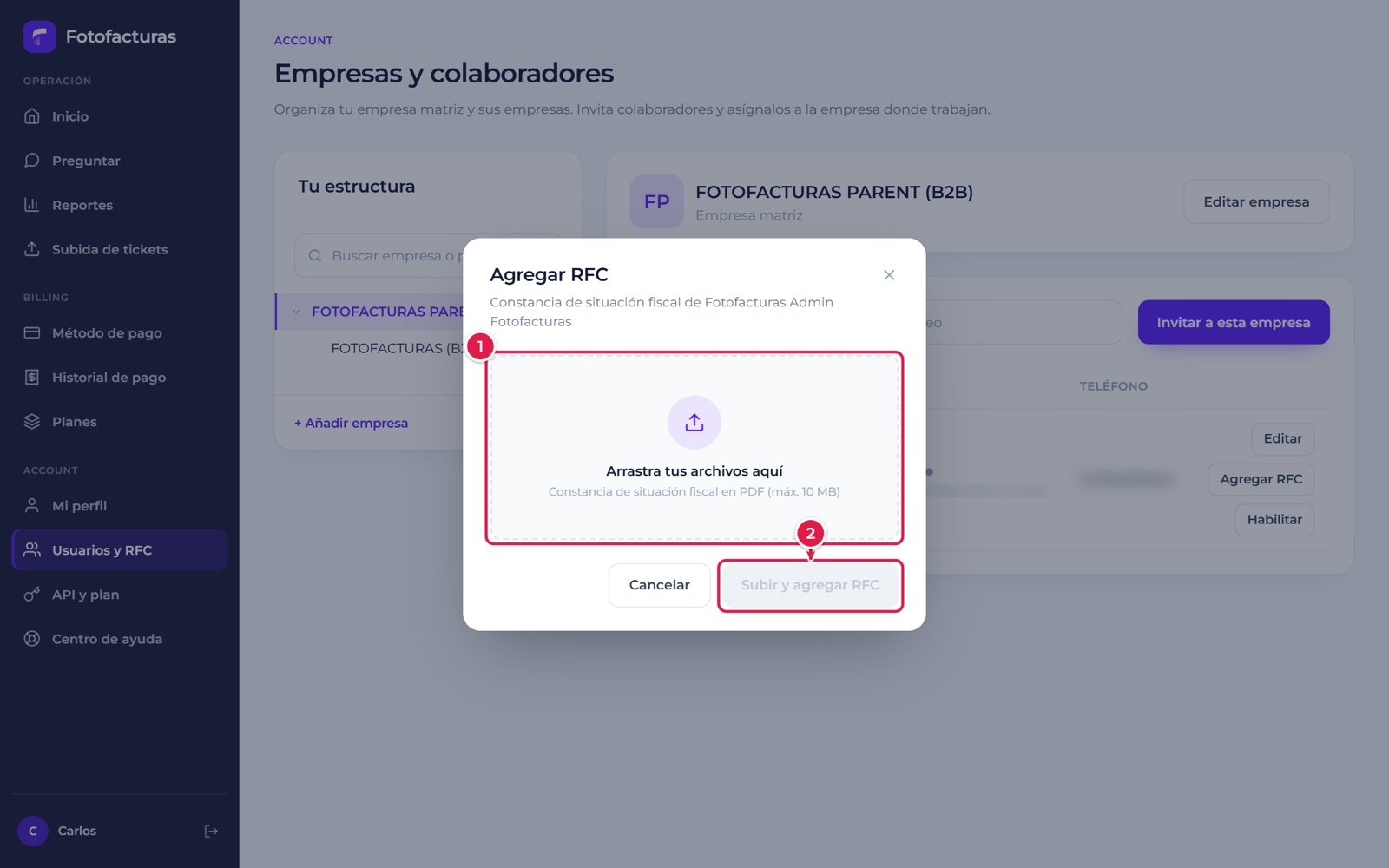
- Drag or select the Constancia de Situación Fiscal (tax status certificate) as a PDF (10 MB max.).
- Click Subir y agregar RFC. When the collaborator already has an RFC, the same option updates the certificate.
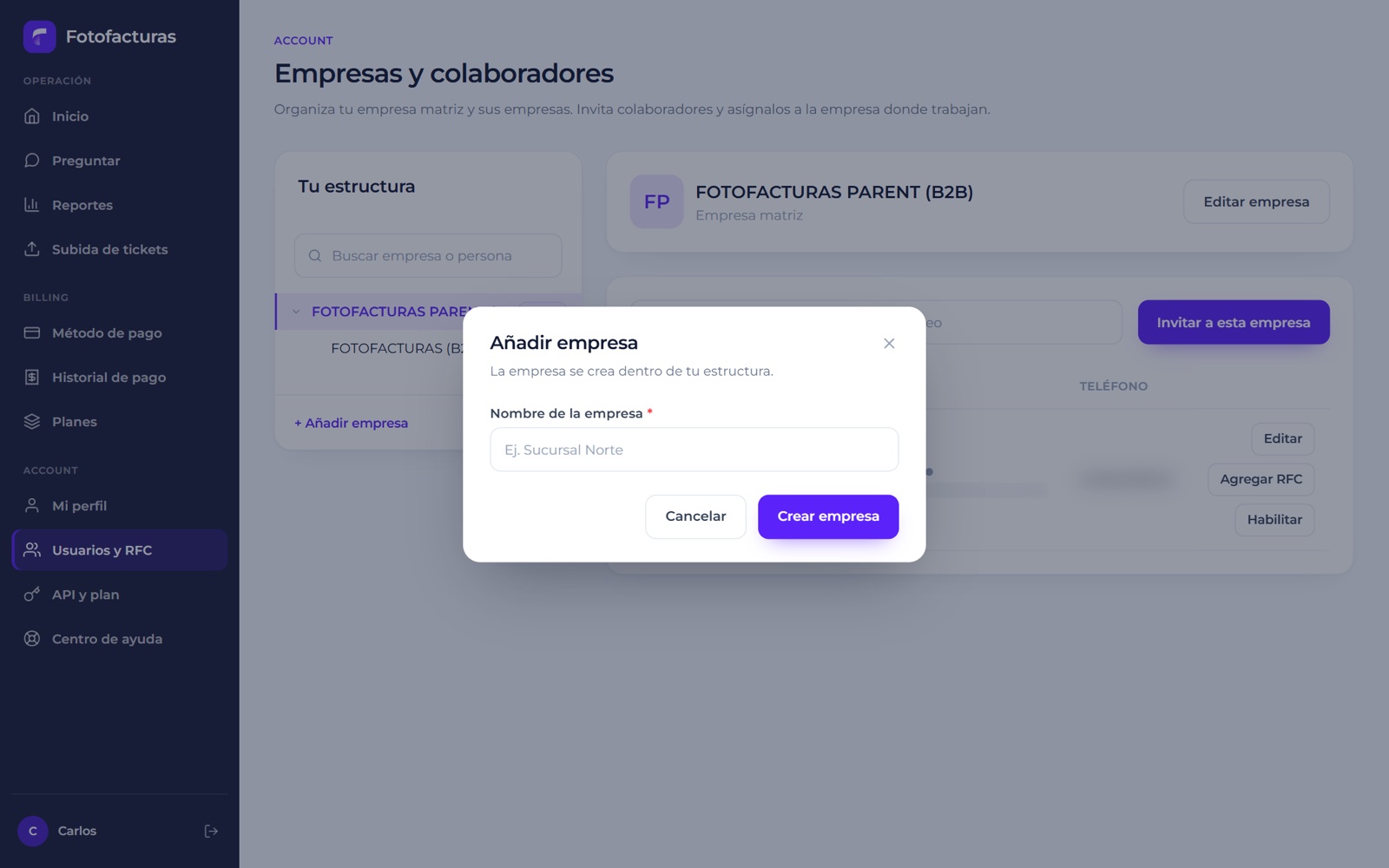
Adding a company
Click + Añadir empresa, type the Nombre de la empresa (company name, for example Sucursal Norte) and click Crear empresa. The company is created within your structure.
10.3 API and plan
API y plan menu. For connecting your own systems to Fotofacturas.
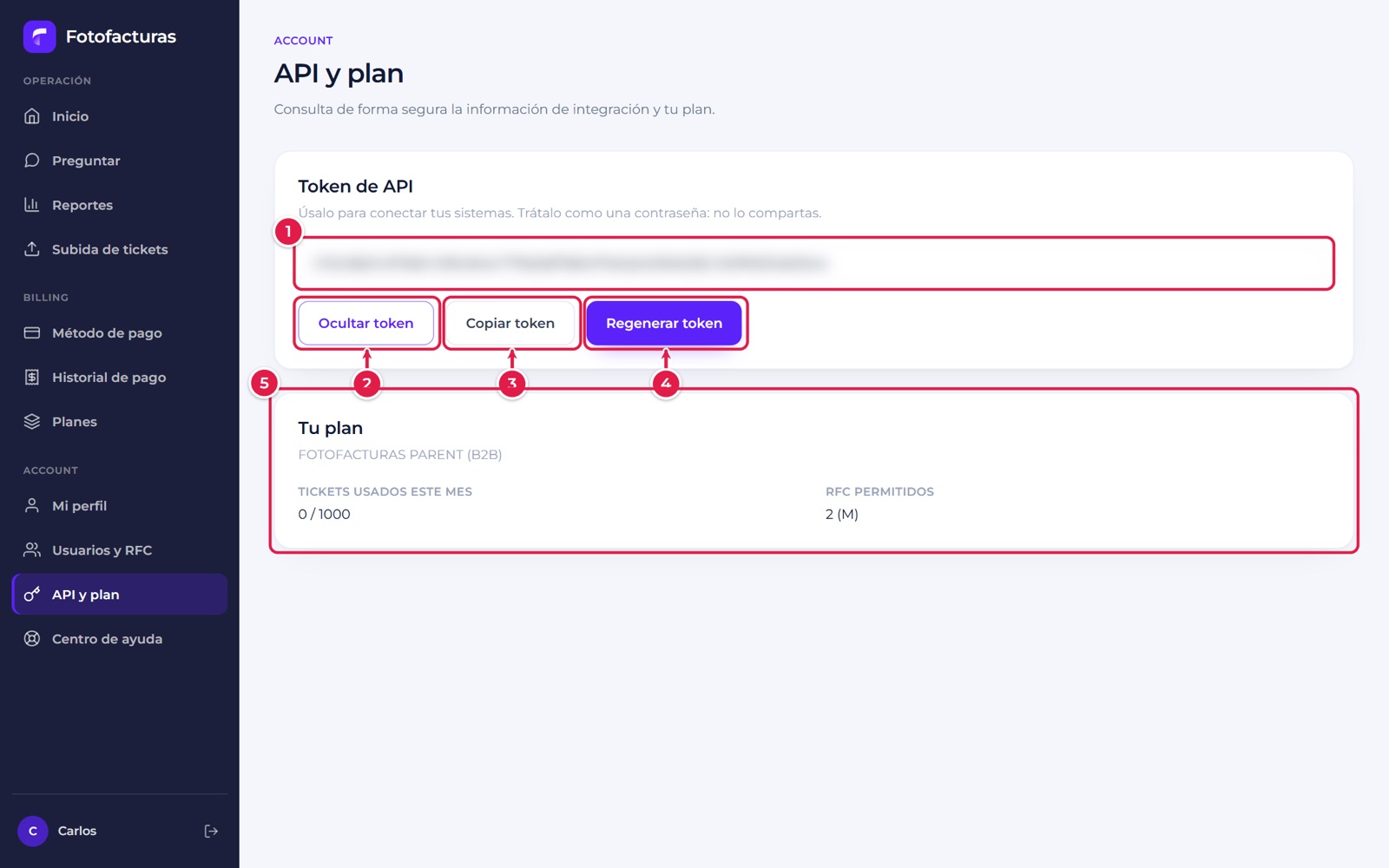
- Token de API: hidden by default. Treat it like a password and don’t share it.
- Mostrar token / Ocultar token: shows or hides the value.
- Copiar token: copies it to the clipboard.
- Regenerar token: creates a new one. It asks for confirmation because the previous token stops working and you’ll need to update it in your integrations.
- Tu plan: tickets used this month and RFCs allowed.
How to use the token and each API is in EnterpriseAPI.
10.4 Webhooks
Webhooks menu. So your systems receive a notification every time a ticket’s status changes, and so you can review the delivery history. The technical details (content of each event, signature and retries) are in Webhooks.
Setup
- Empresa: choose the company you’re configuring. Each company can have its own URL per event; if a company doesn’t have an active one, your parent company’s is used (never an intermediate company’s).
- Event cards: one for each event: Ticket facturado (
ticket.invoiced), Ticket no facturable (ticket.failed) and Cambio de estatus (ticket.status_changed). Each card shows whether the webhook is Activo, Pausado or Sin configurar. - URL de destino: the
https://address of your system that will receive the notifications. - Enviar notificaciones: turns sending for that event on or off. If you pause it on a company and your parent company has that event active, that company’s notifications are sent to the parent company’s URL.
- Guardar webhook: saves the URL. The first time, the webhook secret is shown, which you use to validate each notification’s signature. Store it at that moment: for security it’s not shown again.
- Probar: sends a test event to the URL and shows the result.
- Regenerar secreto: creates a new secret; the previous one stops being valid.
Delivery history
- Filters: date range (Desde and Hasta, 31 days max.), Empresa, Ticket number and Envío status (Pendiente, Entregado or Fallido). Click Buscar eventos to apply them.
- Events table: date, event, company, ticket, ticket status, delivery status and attempts, with 20 events per page.
- Ver detalle: shows the delivery status, the attempts with their HTTP response, the delivery and next-attempt dates, the URL and the content sent. Reenviar evento sends it again.
11. Help center
Centro de ayuda menu.
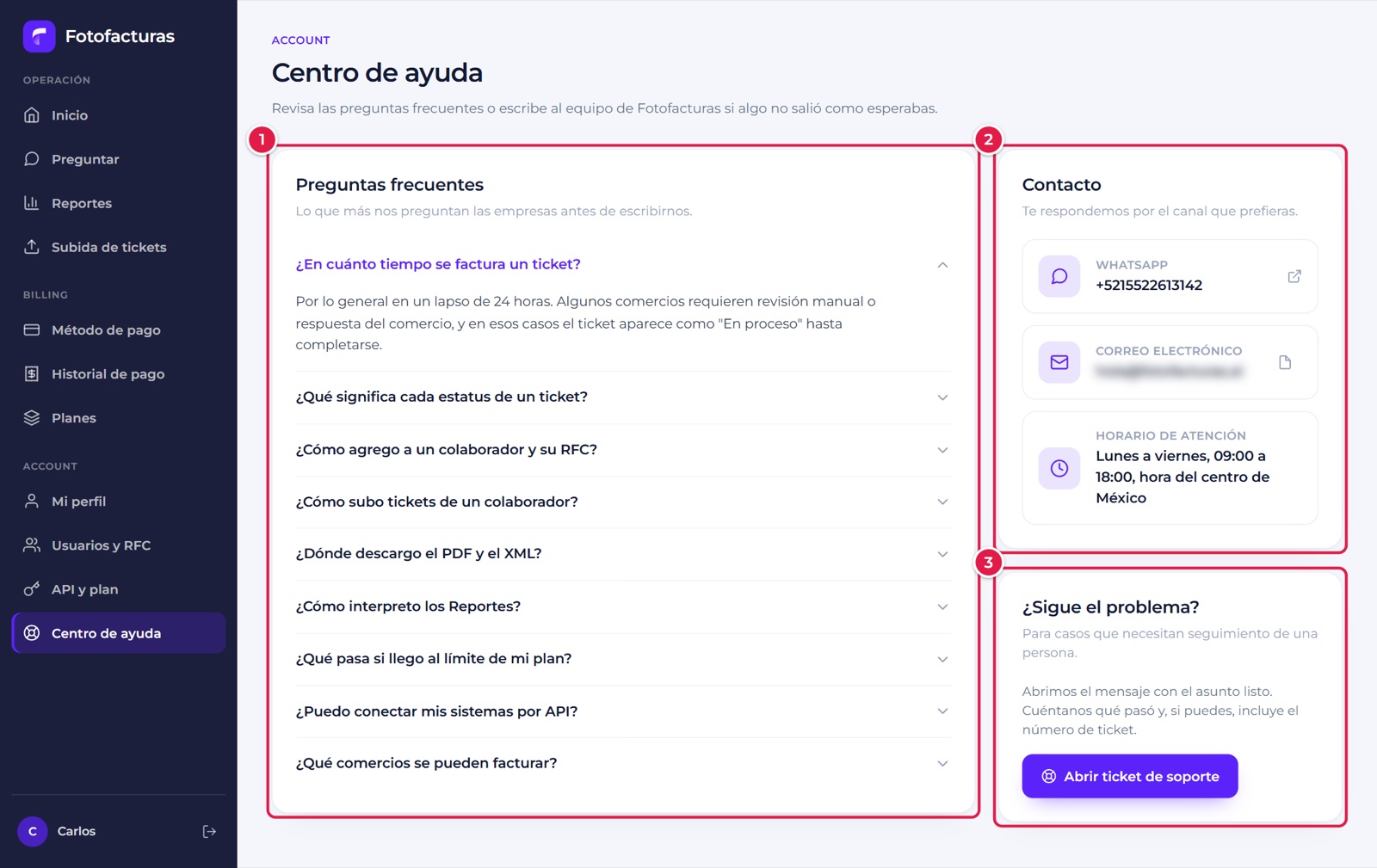
- Preguntas frecuentes: answers to the most common questions (invoicing times, statuses, adding collaborators, downloads, reports, plan limits, API and invoiceable merchants).
- Contacto: WhatsApp, email (with a button to copy it) and support hours: Monday to Friday, 09:00 to 18:00, central Mexico time.
- ¿Sigue el problema?: Abrir ticket de soporte opens a message with the subject ready. Tell us what happened and, if you can, include the ticket number. If you come from a ticket’s Pedir ayuda button, the number is already in the message.
The frequently asked questions from the whole documentation are collected in Frequently asked questions.
12. Dark mode and mobile use
Dark mode
On Home, the theme selector (sun / moon) switches between light and dark. The preference is saved in your browser; the first time, your system’s setting is used.
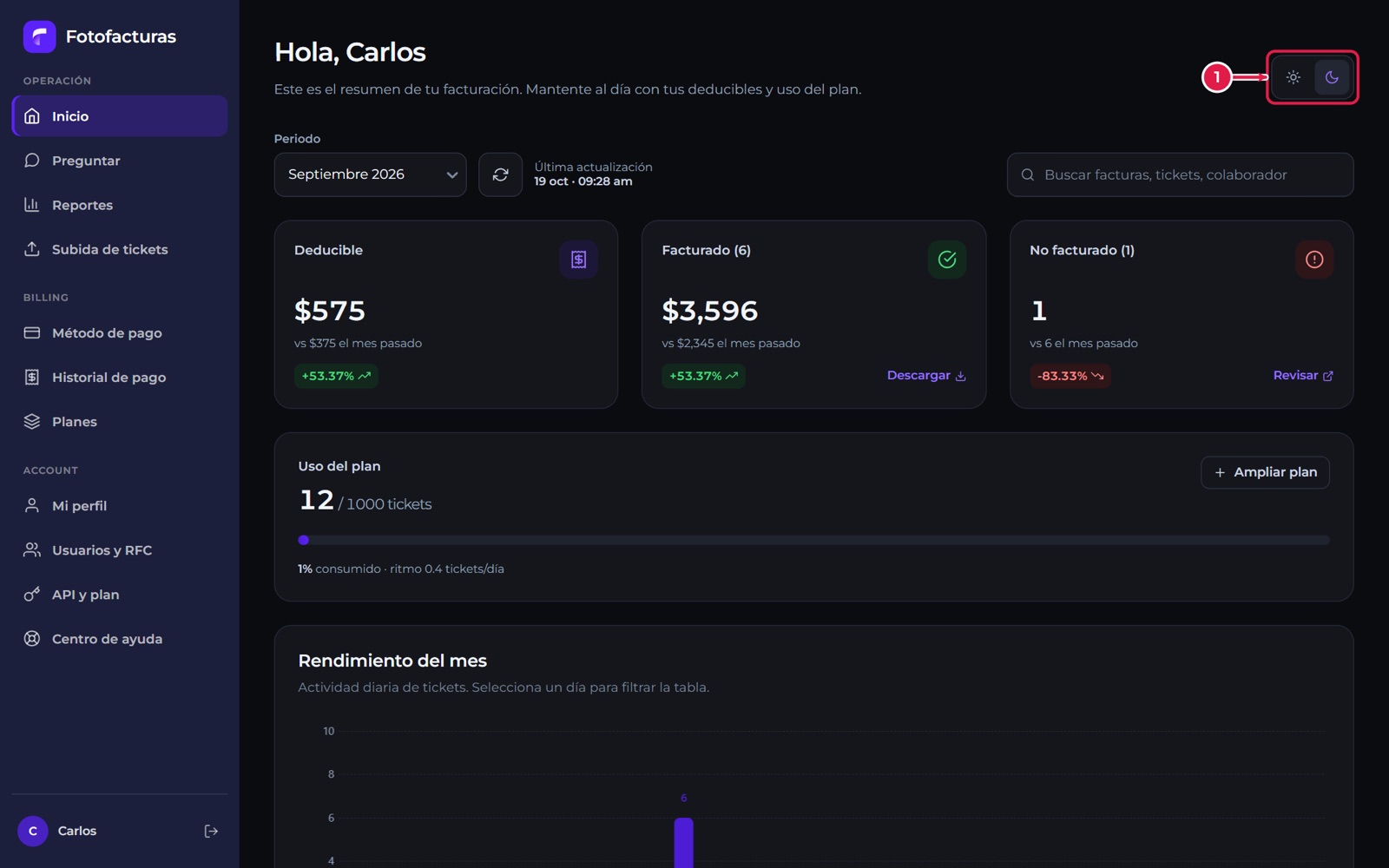
- Theme selector.
On a phone
The platform adapts to small screens: the side menu becomes a bottom bar (Inicio, Reportes, Subir, Empresas, Salir) and the cards stack in a single column.